Guide for restaurant owners
How does a kitchen display system work?
Updated · 9 min read · By the AirQR team
A kitchen display system (KDS) works by sending each order from the POS, QR menu or online page to a screen in the kitchen as a live ticket, instead of or alongside a printed KOT. Each dish shows on its own station's screen, cooks tap the ticket when they start and finish, and timers show which orders are running late. When a ticket is marked ready, the waiter or takeaway counter sees it at once.
- Ticket flow from order to table
- KDS vs KOT printer, side by side
- Hardware and setup tips
What is a kitchen display system (KDS)?
A kitchen display system is software on a screen that shows the orders the kitchen has to make. It does the job of the printed kitchen order ticket, or KOT, but live. The screen can be a tablet, a TV or a computer monitor, and it gets its tickets from whatever takes the order. That may be the captain's POS, a guest ordering from a QR code, or an online order.
The point is not to look modern. The point is to cut the small failures that paper allows. A slip gets lost in the heat. A change is shouted across the pass and misheard. Nobody notices a table has waited twenty minutes. A screen can show all of these things as they happen.
A KDS usually sits beside a POS rather than replacing it. If you are new to the wider system, read what is restaurant POS software first.
How a ticket flows from order to table
- 01
An order is placed
A captain sends a round from the POS, a guest sends one from the table QR code, or an online order is accepted. Some restaurants hold QR orders for a quick staff check first.
- 02
The system routes each dish to a station
Every dish belongs to a station, such as the main kitchen, the tandoor, the grill or the bar. Drinks go to the bar screen and tandoor dishes go to the tandoor screen, even if they came on one order.
- 03
A new ticket appears and chimes
The ticket shows the table or token, the dishes with sizes and add-ons, and any cooking note such as no onion. Later rounds from the same table are marked so the cook sees what is new.
- 04
The cook starts it
A tap moves the ticket from new to preparing. A timer begins to matter now, because it shows how long the order has waited.
- 05
The cook marks it ready
Another tap moves it to ready. The waiter, the takeaway board and the guest's order page can all show that it is ready.
- 06
It is bumped when served
When the food leaves the pass, a last tap clears it. That tap is called bumping. A good system lets you undo a wrong tap or recall a ticket you cleared by mistake.
What a good kitchen display shows
Features vary by product, so ask to see each one in a demo rather than on a brochure.
Timers and colour
Each ticket shows how long it has waited and changes colour when it is late, so the pass can see a problem from across the room.
All-day counts
A running total of every item still to make. If 14 butter naans are waiting across six tickets, the tandoor sees 14 at a glance.
Station filters
The bar sees only drinks, the tandoor only tandoor items. Each ticket shows just that station's lines.
Changes and voids
If a captain voids a dish or adds one after the ticket is sent, the screen should flag it clearly, with the cancelled dish struck through, so nobody cooks it.
Parcel and source tags
A packed dish should be marked as a parcel, and the ticket should show whether the order came from the POS, a QR order, the kiosk or online.
Order-ready screens
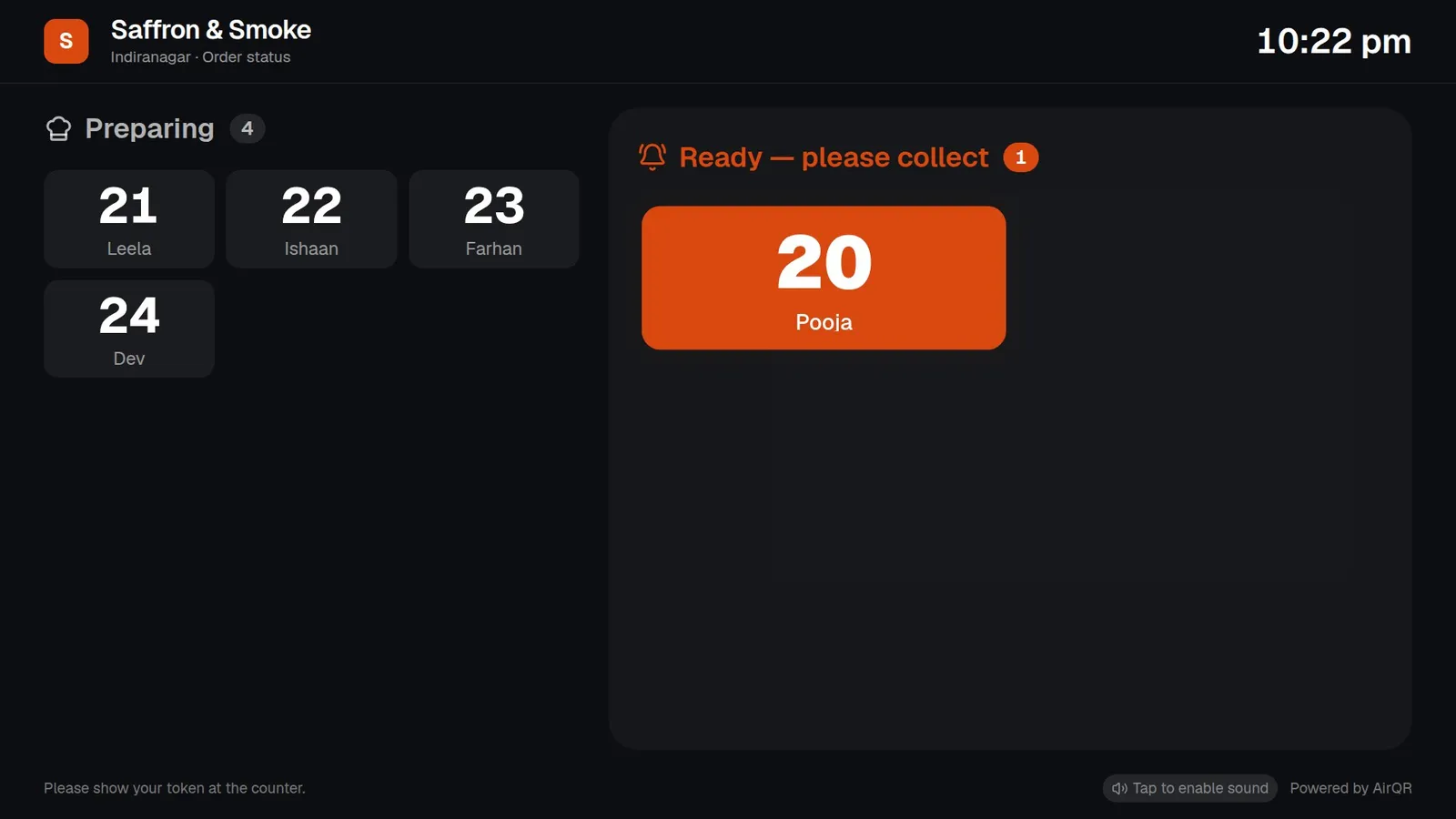
A TV near the counter can show takeaway guests their token moving from preparing to ready, so staff stop shouting names.
KDS vs KOT printer
Neither is better in every kitchen. This table shows where each one fits.
- What the cook holds
- Printed KOTA paper slip they can pin up or carry
- Kitchen display (KDS)A screen they glance at and tap
- Running costs
- Printed KOTPaper rolls and printer upkeep
- Kitchen display (KDS)A screen and the software plan
- Heat, steam and grease
- Printed KOTThermal paper can fade or curl near heat
- Kitchen display (KDS)The screen needs a safe spot and splash protection
- Late orders
- Printed KOTEasy to miss unless someone checks the time
- Kitchen display (KDS)Timers and colour show it
- Changes after sending
- Printed KOTA new void or change slip prints
- Kitchen display (KDS)The same ticket updates with a clear mark
- Counting items
- Printed KOTThe cook adds up slips
- Kitchen display (KDS)The all-day count does it
- Internet failure
- Printed KOTA printer cabled to the billing device can keep printing if the POS works offline
- Kitchen display (KDS)A cloud screen stops getting new tickets until the connection returns
- Staff habits
- Printed KOTFamiliar to every cook
- Kitchen display (KDS)Needs a short training period
- Best for
- Printed KOTSmall kitchens, noisy or hot spots, a simple backup
- Kitchen display (KDS)Busy kitchens, several stations, bars, takeaway rushes
Many kitchens use both. The screen runs the pass and a printer gives a paper backup or feeds one station that prefers slips.
When to use a screen, a printer, or both
A small restaurant with one cook and a handful of tables can run well on a printer. The cook reads the slip, cooks and tears it off. A screen adds cost without much gain.
Once you have two or more stations, a bar, a takeaway counter or a rush that fills the pass, a screen starts to earn its place. The timer and the all-day count solve problems that paper cannot. Even then, keep a printer if your internet or Wi-Fi is not steady, or if one station, such as the bar, works better with slips.
Plan for failure. Decide what the kitchen does if the screen goes dark. If a printer already prints every ticket, the kitchen can carry on cooking from paper while the screen is fixed. This mixed setup is common because it removes the single point of failure.
Kitchen display system hardware
KDS hardware can be very simple. A cloud kitchen display needs a screen with a browser, a power supply and a network connection. That can be a tablet in a stand, a spare laptop, a mini PC or a TV with a computer stick. You do not usually need special kitchen hardware, but you do need to protect whatever you use.
Mount the screen where the cook can see it without bending, away from steam and direct heat, and out of reach of splashes. A tablet in a wall mount or stand is easier to wipe and replace than a bolted TV. Use a wired connection or a strong Wi-Fi signal, because a screen that drops its connection in the middle of service is worse than paper. Set the screen never to sleep, keep it plugged in and keep the volume up. A louder speaker helps in a noisy kitchen.
Use one screen per station if stations are far apart, and a bigger screen at the pass if you can. Check that the product shows sizes large enough to read from the stove.
Setup tips for a new kitchen display
- Name your stations first, such as kitchen, tandoor, bar and packing
- Check every dish is sent to the right station before you open
- Put one screen at the pass and another at any station that works alone
- Turn on the new-order chime and tap the screen once so the browser allows sound
- Set the screen to never sleep and keep it on a charger
- Keep a KOT printer running for the first week as a backup
- Brief the cooks on what each tap means, and how to undo one
- Decide who approves QR orders if you hold them for a check
- Test a rush, with five tickets in two minutes, before a real Friday
How AirQR's kitchen display works
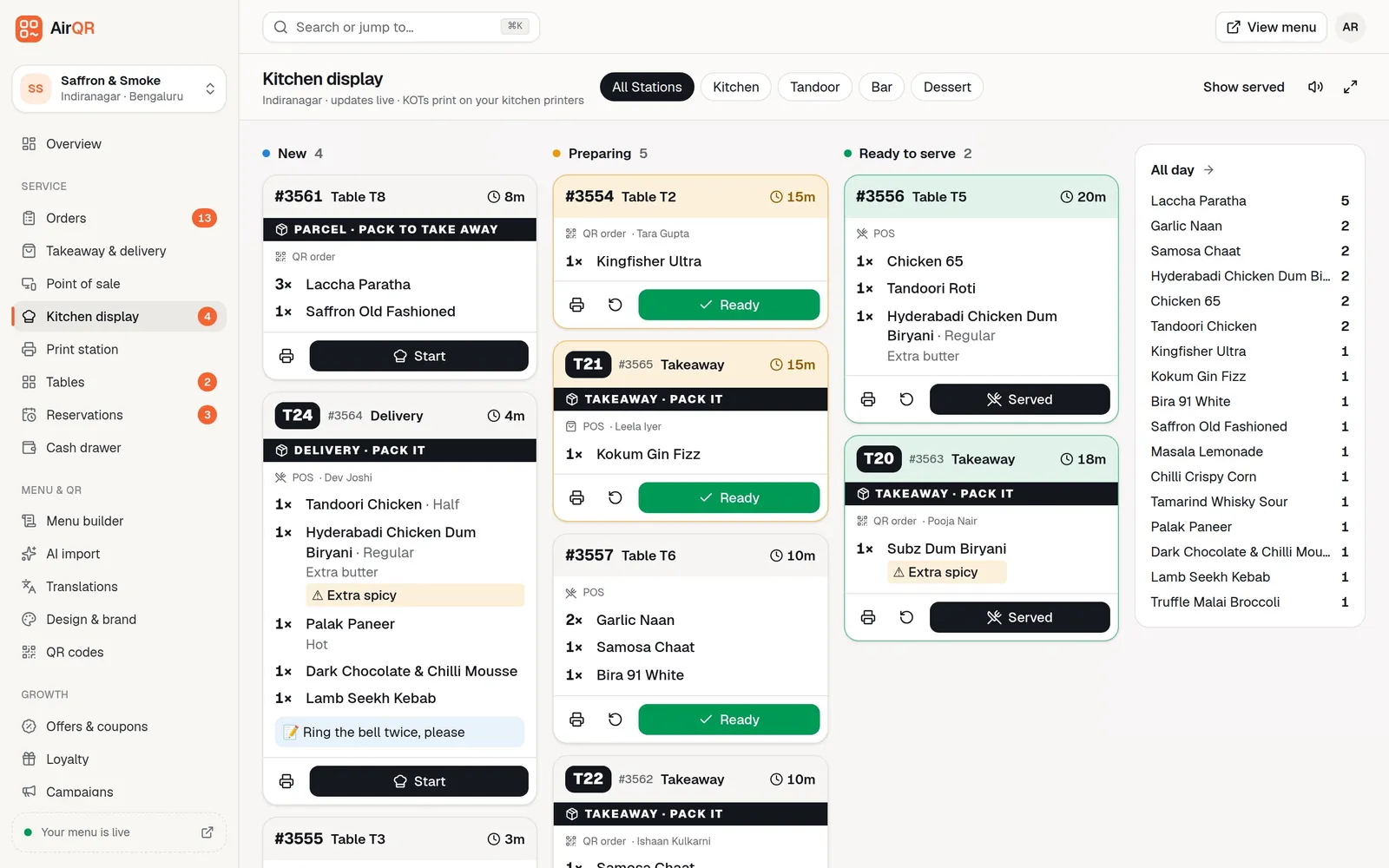
AirQR's kitchen display runs in a browser on a tablet, TV or computer. Tickets sit in New, Preparing and Ready to serve. Each shows the table or token, the name of the waiter or cashier who took the order, items with sizes and add-ons, cooking notes in yellow, and a red allergy tag with the dish's allergens when a note mentions an allergy. The timer turns amber when a ticket is due soon and red when it is late. An all-day panel on a large screen adds up every item still to make.
Stations decide where a dish appears. Each station can use a kitchen screen, a drinks-first bar screen, a pickup counter view or an expo and packing view. A station clears only its own items, and the ticket is ready for the waiter only when every station has finished. Each station has its own target time. Tickets turn amber at that time and red at twice that, with sensible defaults if you leave it empty, such as 10 and 20 minutes on a kitchen screen and 6 and 12 on the bar screen. Every screen can be dark or light, so it suits a dim bar or a bright counter. The bar screen also shows a to-pour list. See stations and the bar screen.
If the POS voids or adds an item to a ticket the kitchen already has, the display chimes and flags it, and a void or change slip can print as well. KOTs print per station, with reprints clearly marked, and the display keeps working even if every printer is down. See how printing works and the kitchen display help article for setup. If the POS is working offline, KOTs print on a USB or Bluetooth printer at that counter, and the kitchen works from paper until the connection returns.
- Recall a served ticket for 20 minutes
- Approve QR orders on the screen if you hold them
- Sound on or off per screen
- One screen per station on its own tablet
- A target time for each station
A screen for takeaway guests as well
A second screen can face the guests. The order-ready screen is a link you open on a TV near the counter. It shows tokens moving from Preparing to Ready for takeaway, pickup and delivery orders. It shows only token numbers and first names, never amounts, phone numbers or items. It chimes when an order is ready.
Questions
What is a KDS in a restaurant?
KDS stands for kitchen display system. It is a screen that shows kitchen tickets live and lets cooks mark them started, ready and served.
Is a KDS better than a KOT printer?
Not always. A screen adds timers, counts and clear changes, and a printer is simple and works on a cable. Many kitchens use both.
How much does a kitchen display system cost in India?
It depends on the software and the screens. A tablet, TV or spare laptop can be the screen, so the main cost is often the software, and you should ask whether each extra screen is charged. AirQR plans are on the pricing page.
Can a kitchen display work without internet?
A cloud kitchen display needs a connection to receive tickets. Keep a KOT printer as a backup. In AirQR, if a counter POS is offline its KOTs print on a USB or Bluetooth printer at that counter, and the kitchen works from paper until it syncs.
What does bumping a ticket mean?
It means clearing a ticket from the screen once the food has left the pass. Good systems let you move a ticket back or recall it if you tapped by mistake.
Can the bar and the kitchen have separate screens?
Yes. Each station can have its own screen, and drinks can be sent to the bar while food goes to the kitchen from the same order.
Do I need special hardware for a kitchen display?
No. A tablet in a stand, a spare laptop or a TV with a computer stick works. Protect it from heat and splashes, keep it plugged in and stop it from sleeping.
Keep reading
Try AirQR in your restaurant
Set up in minutes on the phones, tablets and printers you already have. 28-day free trial.