For quick service and fast food
QSR billing software for a line that has to keep moving
AirQR is QSR billing software for fast food counters, food courts and quick service restaurants in India. Staff bill with short codes, guests can order on a self order kiosk, and every order gets a token. The kitchen sees what to cook and a TV shows which tokens are ready, so nobody shouts a name.
- Short codes for fast counter entry
- Self order kiosk with eat here or take away
- Tokens and an order-ready TV
What quick service billing software has to do
In a quick service restaurant, speed is the product. The line is long, the menu is short, and every extra tap at the till slows down the guest behind. QSR billing software must make entry fast, get the order to the kitchen at once and hand the right food to the right person.
AirQR is set up for that. A quick service outlet starts with a Kitchen station and a Counter or pickup station. Every counter order gets a daily token that restarts at 1 each morning, and the token follows the order from till to kitchen to the hand-over. A counter-only shop switches tables off in the POS settings, so staff never see a table picker.
You can use the till, the kiosk or both. If you want a cafe-style menu and loyalty, see AirQR for cafes.
A lunch rush at a fast food counter
This is the flow when the counter, kiosk and kitchen all run on AirQR.
- 01
Opening
The manager marks any item that has run out as sold out, so nobody can order it at the till or on the kiosk. The order-ready TV is opened in a browser and set to full screen.
- 02
12.30 pm, the line forms
The cashier types a short code and a quantity, such as 2*BC, and presses Enter, then presses Charge. With quick billing on, that adds the items, takes payment and issues the token on the bill.
- 03
The kiosk takes the overflow
Guests choose Eat here or Take away on a tablet, tap big tiles, pay and see a token in huge type. The kiosk goes back to its welcome screen by itself.
- 04
The kitchen cooks from one screen
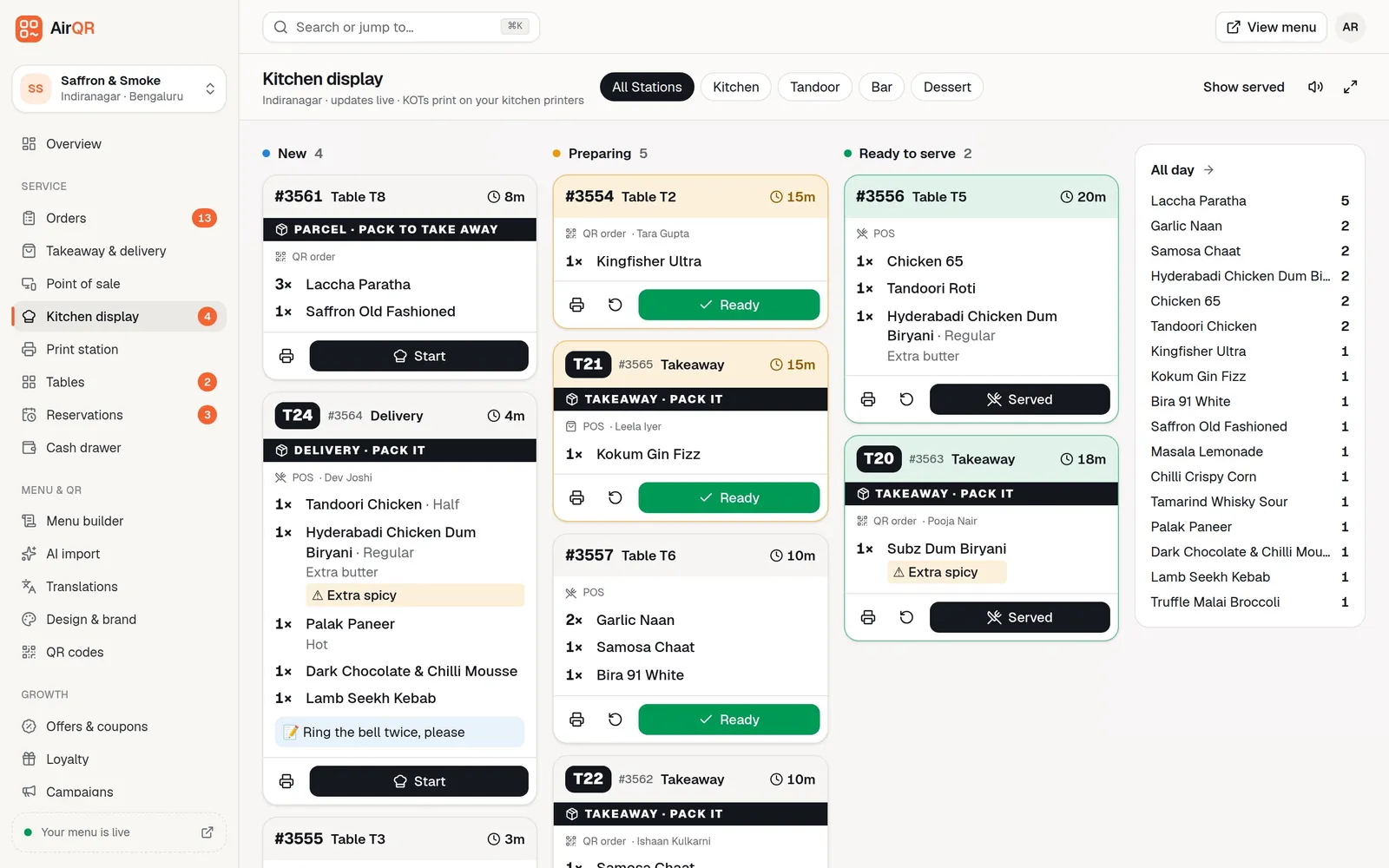
Counter and kiosk orders both appear on the kitchen display. A ticket turns amber when it is due soon and red when it is late, and you can set your own target time for each station. The All day panel shows how many of each item are in progress.
- 05
Order ready
The cook taps Ready and the token moves to Ready on the TV with a chime. Staff press Call token and then Handed over on the pickup counter screen, which shows each station's progress on every token.
- 06
Closing
The cashier closes the drawer, which makes the day's Z report with sales by channel, so the owner can see how much came through the kiosk and how much through the counter.
Set up the POS for counter quick billing
Settings, then POS settings, has a Quick service setup. The POS is included in every AirQR plan.
Eat here, takeaway and delivery
The setup shows these three order types, hides the table picker and gives every bill a daily token. Delivery needs the delivery module. Switch off any order type you do not sell.
One-tap Charge
Quick billing shows one big Charge button that adds the items, takes the money and issues the token. The send button shows only when a kitchen display or printer needs telling.
An optional guest count
Choose not asked, optional or required. Most counters leave it off, and a food court stall that wants to count heads can keep it optional.
Works without a kitchen display
With no kitchen display, the POS runs the whole check. Send becomes Add to check, and kitchen tickets still print on your kitchen printers. With no kitchen printer, a Print kitchen ticket button appears after each send.
Walk-in by default
Start every order as a walk-in so the line is not slowed by asking for a name or phone. Staff can still add details for a regular.
Order-ready TV and token system for a restaurant
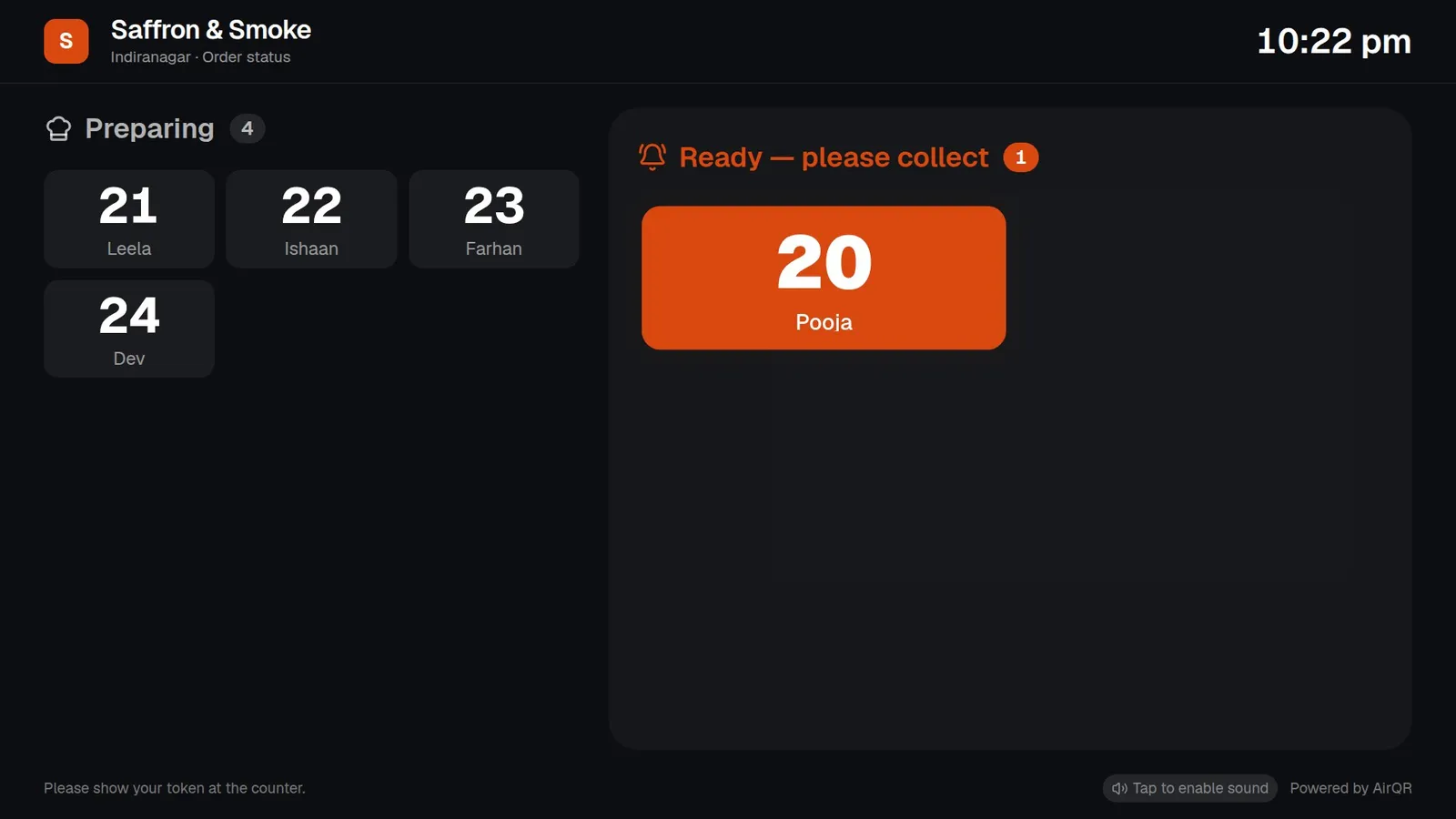
A token system for a restaurant replaces shouting names with numbers. Every takeaway, pickup and counter order gets a token for the day. It prints on the bill, shows on the kitchen ticket, and appears on a TV near the counter as Preparing and then Ready.
The TV is just a web page. Open the link on a smart TV, a TV stick or a spare tablet, tap once to turn the chime on and leave it. It shows token numbers and first names only, never amounts, phone numbers or items. It lists takeaway, pickup and delivery orders and does not show dine-in. See the takeaway token system.
- The newest ready order is highlighted and pulses
- Collected orders drop off after about ten minutes
- A light theme is available for bright shops
Self order kiosk and fast counter entry
Two ways to speed up the line. Use one or both.
Self order kiosk
A tablet at the counter where guests order by themselves, in English or Hindi. It asks Eat here or Take away, and clears the cart if nobody touches it. It is paired with a staff PIN, so a guest cannot leave kiosk mode. See self order kiosk.
Three ways to pay at the kiosk
Pay at the counter, pay by UPI on the kiosk with a QR for the exact amount, or pay when collecting. UPI is confirmed by staff before the order goes to the kitchen.
Short codes
Each item gets a code and the cashier types it with a quantity. Create all the codes in one go from your menu. They work offline. See short codes.
Keyboard shortcuts
Press / to jump to search, Enter to add the top match, Ctrl and Enter to send and Alt with a number to pick a category. See keyboard shortcuts.
A kiosk that resets itself
The Auto style gives quick service a bold look. After each order the kiosk shows the token in huge type for as long as you set, then goes back to its welcome screen for the next guest.
Offline billing
If the internet drops, the POS keeps taking orders, printing and recording payments, then syncs later. See offline billing.
A kitchen screen that keeps up with the line
Tickets move from New to Preparing to Ready with one big button. Takeaway tickets show a big token number and a Takeaway label, so nobody plates one for the dining area. If a cashier voids an item after the ticket is sent, the screen chimes and shows it struck through.
The All day panel adds up every item still in New and Preparing, for example how many burgers or rolls the grill must make. Items that are made in different places can be split by station, such as the kitchen and the counter. Each station works from its own screen, clears only its own items and has its own target time, and the order is ready only when every station is done. The ticket also shows the name of the staff member who took the order. See stations.
- Late tickets turn amber and then red against the station's target time
- Reprint any KOT with the printer icon
- A station screen for each section of the kitchen
Getting a quick service counter live
Do these once, before your first lunch rush.
- Import your menu and keep names short so they fit on a tile
- Give every item a short code and check for clashes
- Turn on counter takeaway and decide on pay first or pay on collection
- Pair a kiosk tablet, set the staff PIN and choose how guests pay
- Open the order-ready link on the TV and tap to turn the sound on
- Add your UPI ID so the till and kiosk can show a QR for the exact amount
- Print a test KOT on the kitchen printer
Questions
What is QSR billing software?
QSR stands for quick service restaurant. QSR billing software is the till, kitchen screen and token system used in fast food counters, built to take and hand over orders as quickly as possible.
How does a token system for a restaurant work in AirQR?
Every counter, takeaway and kiosk order gets a number for the day, starting at 1 each morning. The token prints on the bill, shows on the kitchen ticket and appears on the order-ready TV, so staff call numbers instead of names.
Do I need special hardware for the self order kiosk?
No. The kiosk runs in a browser on a tablet, best used in landscape with auto-lock turned off and the tablet kept charging. You pair it to your outlet with a code.
Can the kiosk take card payments?
Not today. Guests can pay at the counter, pay by UPI on the kiosk or pay when collecting. Card and wallet payments through a gateway are not available yet.
Can I run the POS at a counter without tables?
Yes. The Quick service setup in POS settings hides the table picker, shows Eat here, takeaway and delivery, and gives every bill a token. Quick billing adds a single Charge button.
Do I need a kitchen display to use the POS?
No. Without a kitchen display the POS runs the whole check, and kitchen tickets still print on your kitchen printers. Add a kitchen display when you want cooks to read a screen.
Is AirQR good fast food billing software for a food court stall?
Yes. A food court stall can run a counter till, a kiosk and a token TV without using any tables.
What stops a guest who pays on the kiosk from skipping payment?
UPI orders on the kiosk wait until staff confirm the money in their own UPI app. Pay-first orders are not cooked until payment is confirmed, and unpaid ones cancel on their own after a time you set.
Keep reading
Try AirQR in your restaurant
Set up in minutes on the phones, tablets and printers you already have. 28-day free trial.