Kitchen display system
A kitchen display system for your restaurant, on a tablet or TV
AirQR puts every order on a screen in your kitchen as soon as it is sent. Cooks tap a ticket when they start and when it is ready, and the waiter, the takeaway board and the guest's phone update at once. It runs on a tablet, TV or computer you may already have, and works alongside printed KOTs.
- Live tickets with timers
- A screen for each station
- Printed KOTs still work
What a kitchen display system does
A kitchen display system, or KDS, replaces the paper slip that gets lost, wet or misread. The order appears on a screen. The cook sees what to make, how many, and for which table or token. When the dish is done they tap it and everyone who is waiting is told.
It matters most when a kitchen is busy. A paper rail cannot tell you which ticket has waited twenty minutes. A screen can, and it can add up the butter naan the tandoor must fire before anyone asks.
In AirQR the kitchen display is part of the same system as your billing and QR ordering. A ticket sent by a captain, a QR order from a guest or an accepted online order all land in the same place. You do not key the order twice.
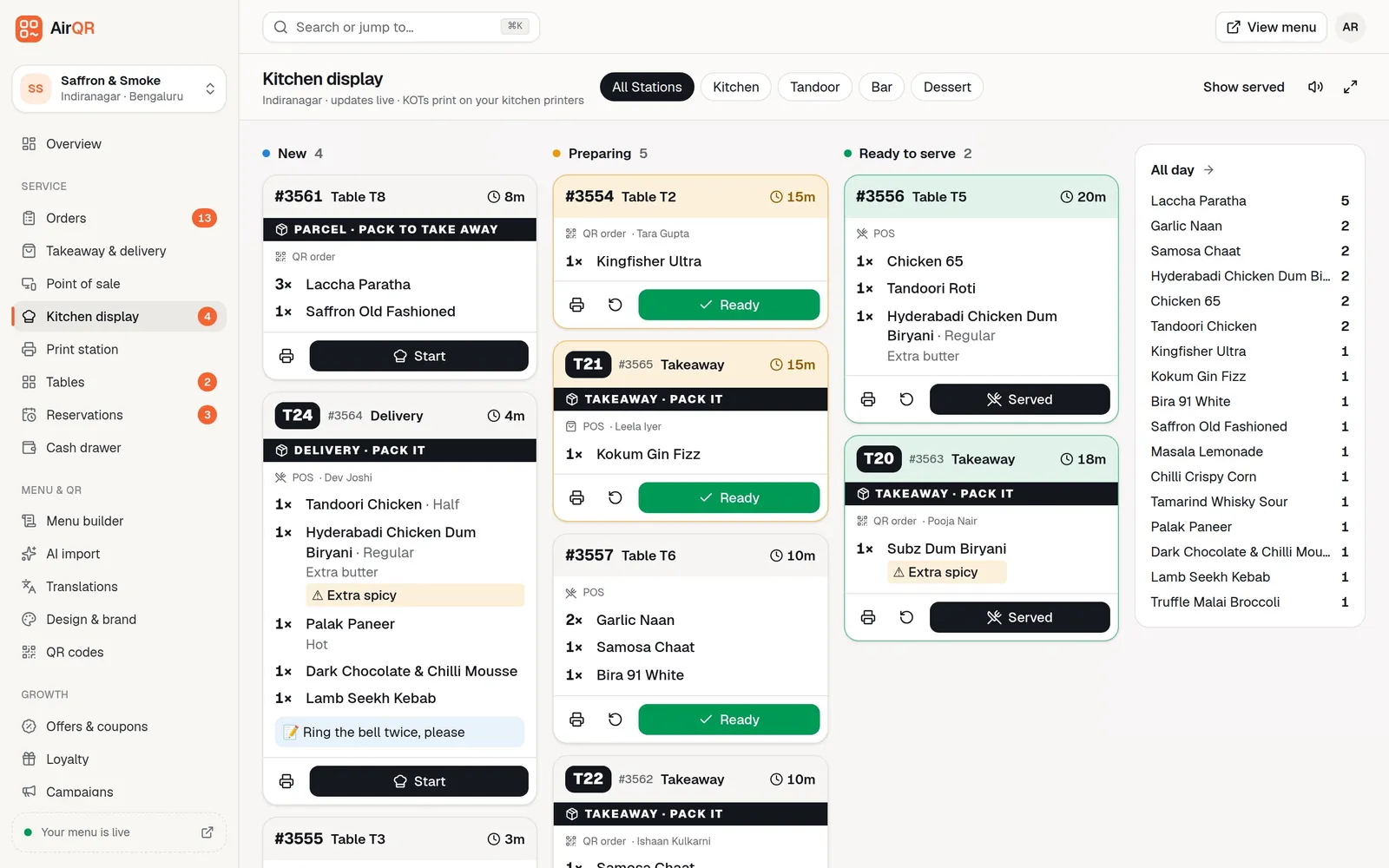
New, Preparing and Ready, at a glance
Each ticket shows the order number or a big token for takeaway, the table or Takeaway or Delivery, the round, and each item with size, add-ons and cooking notes highlighted. The header also carries the name of the waiter or cashier who took the order, so the cook knows who to ask. A timer counts minutes and seconds since the ticket arrived, and the header turns amber when it is due soon and red when it is late. Colour is never the only signal, because the timer also changes its icon and says the word.
One big button moves a ticket forward. Start, then Ready, then Served. Tapped the wrong one? Move it back, or recall a served ticket within 20 minutes.
- Later rounds on a table are marked R2, R3
- A red ALLERGY tag, and each dish's allergens such as milk or gluten under the item
- Parcel orders carry a black Parcel strip
- An all-day panel totals every item still to cook
- Sound chimes for new and changed orders
Built for how Indian kitchens actually run
Allergens on the ticket
When an order or an item has a note that mentions an allergy, a red ALLERGY tag appears and the dish's allergens turn red. The cook reads it before the plate goes out.
A bar screen for drinks
Big text and big buttons for wet hands. It is dark by default for a dim bar, with a light option for a bright one. Tap each drink as it is poured and see a To pour list by drink and size. See the bar screen.
Changes the cook cannot miss
If a cashier voids a dish or adds one after the ticket arrived, the screen chimes. Cancelled lines are struck through with Don't make, and new lines are highlighted.
QR order approval
If you want a human check, QR orders wait in New for a manager to accept or reject before the kitchen starts. See guest QR ordering.
Pay first, then cook
Takeaway orders waiting for payment show that on the ticket and cannot be started until the cashier confirms.
Hindi on the screen
A language switch on shared screens changes the kitchen display to Hindi for that device only.
Station screens and target times for kitchen, bar and tandoor
Every menu item is sent to one station, such as the kitchen, the tandoor, the bar or a coffee counter. Each station works from its own screen and sees only its own items, with the station's name and icon in the header. A tablet at the tandoor shows only the tandoor lines of each order, plus a short note such as "3 other items on this order at Kitchen", so the tandoor knows what the rest of the order is waiting on. You choose the screen for each station in Settings, and open it from the Kitchen display menu or bookmark it on that tablet. See stations.
A station clears only its own items. When the tandoor taps Ready, the ticket shows that its part is done here and that it is waiting on the Kitchen. It becomes ready for the waiter and the guest only when every station has finished its items. One station can never clear a whole ticket and hide it from the others.
There are four kinds of screen. The kitchen screen has New, Preparing and Ready columns and is used for the kitchen, a tandoor, a grill or desserts. The bar screen is drinks first. The pickup counter shows orders by token, with each station's progress, so staff can call the token and hand the order over. An expo or packing screen gives the same order-by-order view for a packing table or room service.
Each station also has its own target time. A tandoor and a bar do not work at the same speed, so one timer for everyone does not make sense. Owners and managers set the target in minutes for each station in Settings. The ticket turns amber at that many minutes and red at twice that, so a target of 8 turns tickets amber at 8 minutes and red at 16. Leave it empty and AirQR uses 10 and 20 minutes on a kitchen screen, 6 and 12 on a bar screen, and 10 and 15 on a pickup counter.
All station screens share one look. They work on a tablet, a TV or a computer, and each device has a button to switch between a dark screen and a light screen. The choice is remembered on that device, so a hot, dim kitchen can stay dark while a bright counter uses light.
What does a kitchen display system need to run?
A screen, a web browser and an internet connection. The kitchen display opens on a tablet, a TV with a web browser or a computer, and it fills the whole screen with big type that is easy to read from across the room. Sign in with a kitchen login, press full screen, keep the sound on and set the screen to never sleep. Kitchen staff see only this screen and nothing else of your business.
So the kitchen display system price in India, with AirQR, is mostly the screen you choose. There is no special kitchen hardware or proprietary screen to buy, and a spare tablet on the pass is enough to start. The software is part of your AirQR subscription, and the pricing page has the current prices and the 28-day free trial. For a wider look at costs, see the restaurant POS cost guide.
If you would like to know what a KDS is before you decide, the kitchen display system guide explains it without the sales talk.
KOT software for restaurants, with or without paper
Many kitchens keep a printer as well as a screen, and AirQR is restaurant billing software with KOT built in. The same round that appears on the kitchen display can print as a KOT on your thermal printer, split by station, so you can run screens only, paper only or both while the team gets used to the change.
The two never fight each other. A cook can bump a ticket on the screen whether or not it also printed, and when a printer jams or runs out of paper the kitchen display keeps showing every ticket. Printer setup, VOID and CHANGE slips and reprints are covered on the KOT printing page and in how printing works.
An order-ready screen for the pickup counter
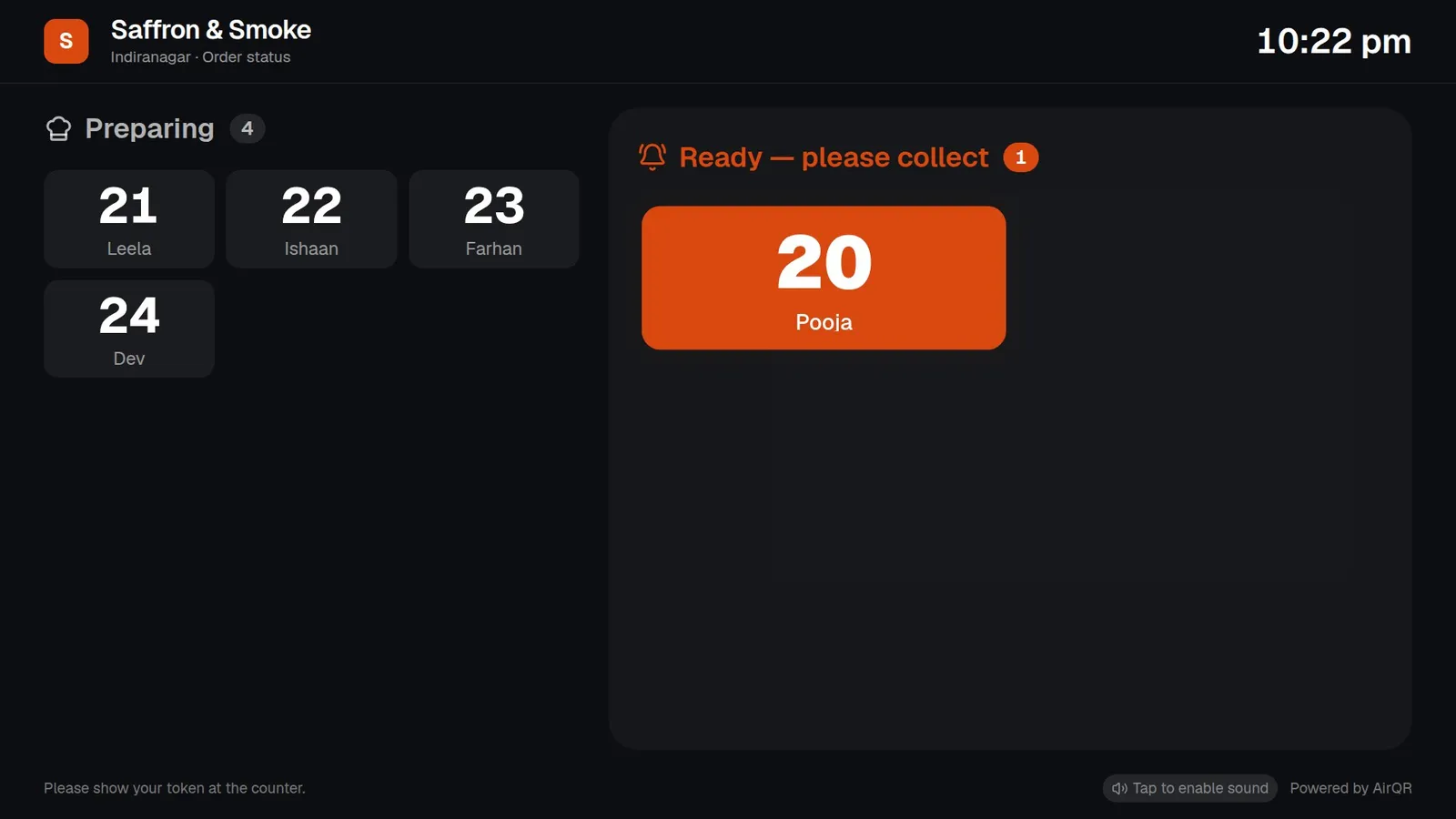
When the kitchen taps Ready, the guest sees it too. Put the order-ready link on a TV near the counter and takeaway guests watch their token move from Preparing to Ready, with a chime. Staff stop calling out names.
The screen shows only token numbers and first names, never amounts, phone numbers or items. It needs no sign-in, so keep its link private. See the order-ready screen.
Signs you are ready for a kitchen display
- Paper tickets get lost, smudged or fall off the rail
- Cooks ask the captain what the order was
- You have a tandoor, a bar or a dessert counter that needs only its own items
- Takeaway guests keep asking how long their order will be
- You want to see which tickets are running late without walking over
- Your kitchen printer jams and service stops
Questions
How much does a kitchen display system cost in India?
With AirQR the main cost is the screen. The kitchen display runs in the browser of a tablet, TV or computer you may already own, so there is no special hardware to buy. See pricing for the subscription and the 28-day free trial.
What do I need to run a kitchen display system?
A tablet, TV or computer with a web browser and an internet connection. Sign in with a kitchen login, press full screen and set the screen never to sleep. Pick a dark or light screen to suit your kitchen.
Can I use both printed KOTs and a kitchen display?
Yes. Printers and screens work together. If printers are down, the kitchen display keeps showing every ticket.
Can the bar and the tandoor have their own screens?
Yes. Give each station its own screen and send items to the right station in the menu. The bar has a drinks-first screen, there is a pickup screen for takeaway tokens, and each station clears only its own items.
Can I set a target time for each station?
Yes. Owners and managers set a target time in minutes for each station. Tickets turn amber at that time and red at twice that, so a target of 8 turns tickets red at 16 minutes.
Does the ticket show allergies and who took the order?
Yes. A red ALLERGY tag shows when a note mentions an allergy, the dish's allergens appear under each item, and the header shows the name of the waiter or cashier who took the order.
What happens if an order changes after the kitchen has it?
The screen chimes and marks the ticket Updated. Removed items are struck through with a Don't make note, and new items are highlighted.
Can kitchen staff see my sales and reports?
No. A kitchen login sees only the kitchen display. Owners and managers decide who sees what.
Keep reading
Try AirQR in your restaurant
Set up in minutes on the phones, tablets and printers you already have. 28-day free trial.