Staff roster and attendance
Staff roster and attendance software built into your POS
AirQR gives every outlet a weekly staff roster, a time clock and an attendance report, inside the same system that runs your billing. Managers plan shifts and publish them. Staff clock in from their own screen or with a PIN on a shared counter tablet. At the end of the week you can see who was late, who was absent and how much overtime there was.
- Weekly roster with a publish step
- Clock in with a PIN on one tablet
- Late, absent and overtime reports
From the register notebook to one screen
Many restaurants still run staff time on a WhatsApp message and a notebook at the counter. The roster is a photo of a paper chart, hajri is written by whoever remembers, and at month end somebody argues about who worked on the 14th.
AirQR replaces that with three connected parts. The roster says who should work and when. The time clock records who actually turned up. Attendance compares the two and flags the differences. All three are part of the staff shifts and attendance module. It comes with the Growth and Pro plans, and on Starter it is a paid add-on (₹199 a month in India, $3 in US dollars). They also feed payroll when you want salaries worked out from attendance.
Nothing needs new hardware. Staff use their own phones, or one tablet at the counter that everyone shares.
Plan and publish the week
The Roster page shows one week, Monday to Sunday, with a row for each person who works at the outlet.
- 01
Add shifts
Tap an empty cell, set the start and end, and add a position such as Waiter, Tandoor or Bar and a note. Overnight shifts that end after midnight are supported.
- 02
Copy last week
Copy last week's shifts into next week as drafts, then change only what is different. Clashes and people who left the team are skipped.
- 03
Fix the warnings
AirQR warns you about overlapping shifts, including a shift at another of your outlets, and about shifts longer than 12 hours.
- 04
Publish
Drafts have a dashed border and staff cannot see them. Publish and staff see their shifts straight away on My shifts.
What the roster tells you
The cards at the top sum up the week before you publish.
Scheduled hours
Total hours and number of shifts for the week at this outlet.
Estimated labour cost
Hourly rate times scheduled hours, shown only to people with pay access, so wage details stay private.
Drafts and warnings
A count of shifts staff cannot see yet and of problems to fix first.
Positions
The position on a shift is also used if you weight a tips split by position.
My shifts for staff
Each person with a login sees what they worked, what is scheduled and their upcoming shifts across all your outlets.
Several outlets
A person can work at more than one outlet, and AirQR catches double bookings between them.
Clock in with a name and a PIN
Staff can use the clock button at the top of their own screen, or a shared tablet. Owners have their personal clock controls in My shifts, without a PIN, keeping the top bar clear.
- 01
Set up a PIN
A PIN is 4 to 6 digits. Staff with a login set their own, and a manager can set one for anyone, including staff added without an email.
- 02
Leave a tablet at the counter
Open the Time clock page in full screen. Each person taps their name, enters the PIN and taps the clock in, break or clock out button.
- 03
Take breaks
Start and end breaks from the same screen. Clocking out during a break ends it automatically.
- 04
Stay protected
Wrong PINs are limited, and a locked name or tablet waits before trying again. A manager can hide the staff list so people type their own name.
Attendance a manager can act on
The Attendance page starts with who is in right now, then covers the period you choose.
Who's in now
See who is clocked in, who is on break, who is expected but missing and who forgot to clock out.
Late and left early
Clocking in more than 10 minutes after the shift starts counts as late, and leaving more than 10 minutes early is flagged.
Absences
A published shift with no clock-in appears as an absence, so you can check whether the person actually worked.
Overtime
Time above the scheduled hours, or above 9 hours, whichever is lower, is counted as overtime.
A timesheet with flags
Every clock-in in the period is listed with flags for late, left early, overtime and forgot to clock out.
Export
Download the attendance as a CSV for your accountant, or open the payroll runs when payroll is switched on.
Fixing mistakes, with a record
People forget to clock out. A manager can tap Fix beside the entry, or add an entry for someone who forgot to clock in. A note is required, for example forgot to clock out and left at 11 15 pm. Every fix is saved with the manager's name, kept in an audit log, and shown to the staff member as edited by manager, so nobody is surprised at month end.
Entries cannot be in the future or longer than 24 hours, and once a month is part of an approved payroll its entries are locked until the payroll is reopened. When payroll is on, only an owner can change their own time entries, so no one sets their own pay. See the time clock help and the roster help for every step.
Set it up in an afternoon
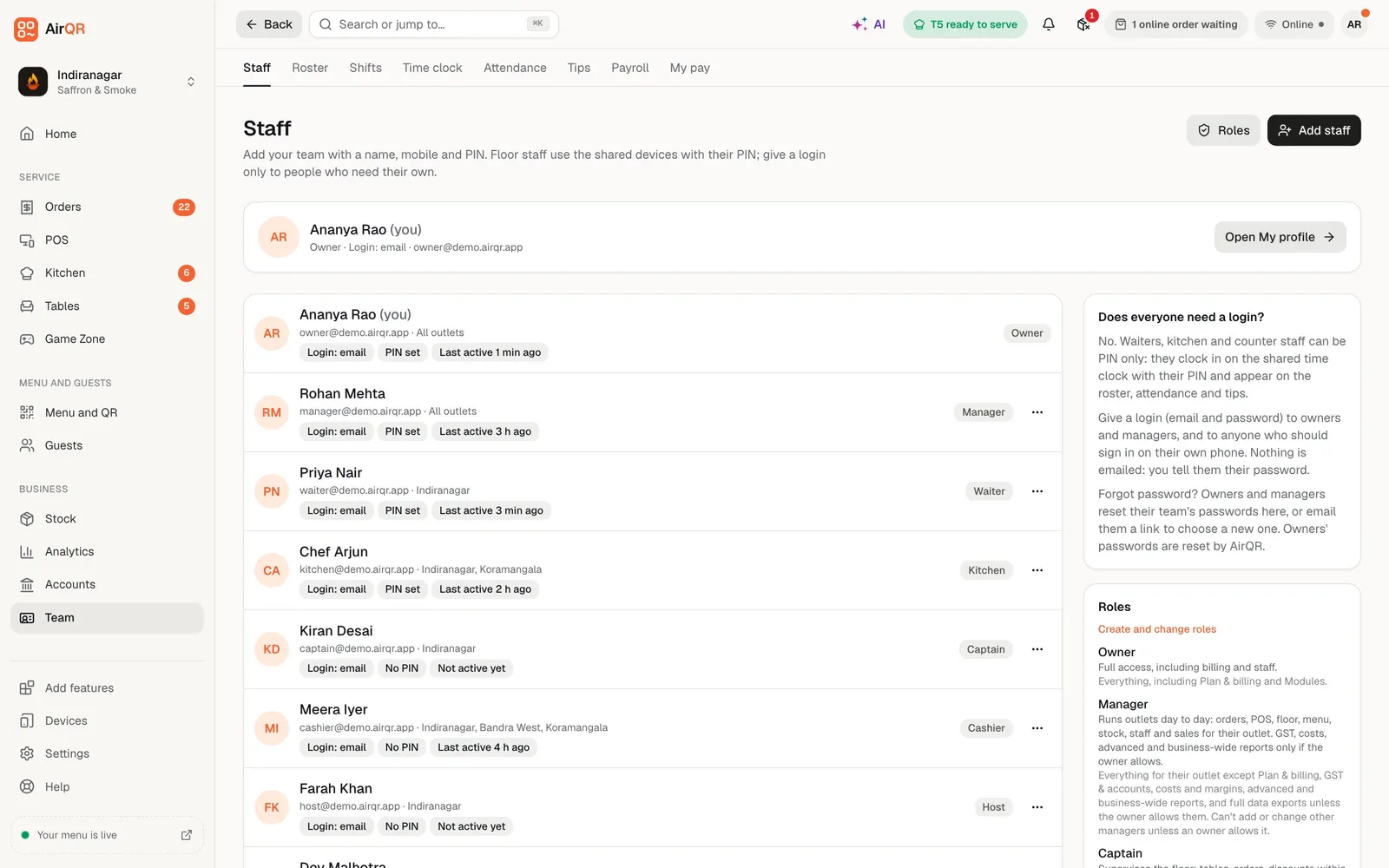
- Add your staff with their outlets and roles on the Staff page
- Give every person a PIN and tell them in person
- Add hourly rates if you want labour cost, visible only to people with pay access
- Build next week's roster, copy it forward each week and publish by Thursday
- Put a tablet on the time clock screen at the counter
- Review the Attendance page each Monday and fix missed clock-outs
Questions
Can staff clock in with a PIN on one shared tablet?
Yes. Open the Time clock page on a counter tablet. Each person taps their name, enters their PIN and clocks in, takes a break or clocks out. The screen resets for the next person.
Can staff see the roster on their phones?
Yes, once you publish it. Staff with their own login see their published shifts on My shifts. Staff added without a login can be sent the roster another way, such as a WhatsApp group.
Does AirQR show who was late or absent?
Yes. The Attendance page flags late arrivals, early departures, absences against published shifts and overtime, for the period you choose.
Can I fix a missed clock-out?
Yes. A manager can fix an entry or add a missing one with a required note. Every change is logged and shown to the staff member.
Does it work for more than one outlet?
Yes. A person can work at several outlets, and the roster warns you if their shifts overlap across them.
Does it work with payroll?
Yes. Attendance feeds payroll, so monthly, daily and hourly pay can be worked out from the hours recorded. Payroll is its own module, included in Pro and an add-on on Starter and Growth.
Which plans include the roster and time clock?
They come with Growth, Pro and the free trial, and Starter can add the module for ₹199 a month in India, $3 in US dollars. See the pricing page for the current plans.
Keep reading
Try AirQR in your restaurant
Set up in minutes on the phones, tablets and printers you already have. 28-day free trial.