For ice cream and dessert parlours
Ice cream shop software for scoops, toppings and busy counters
AirQR is ice cream shop POS software for parlours and dessert shops. Cups, cones and scoops are sizes with their own prices, toppings are add-ons with a minimum and a maximum, and every counter order gets a token. A screen shows which tokens are ready, so a summer queue keeps moving.
- Cup, cone and scoop sizes
- Toppings as add-ons with limits
- Counter tokens and an order-ready screen
What an ice cream parlour needs from billing software
An ice cream parlour sells many small orders very fast. A family of five wants two cones, a sundae and a shake, each with its own flavour and toppings, and the queue behind them is already out of the door. The software has to take a complicated order in a few taps and hand the right cup to the right person.
AirQR treats a cup, a cone and a tub as sizes of the same item, each with its own price, so a menu stays short. Toppings, sauces and extras are add-on groups, where you set how many a guest must pick and how many they can pick. A guest or a cashier then builds the order without a phone call or a guess.
Good to know before you start. AirQR does not read a weighing scale and does not sell by weight, so a parlour that sells ice cream by the gram prices it by named sizes, such as a small tub and a family pack. Everything else on this page works today.
A hot Sunday at an ice cream parlour
This is how a busy afternoon can run when the counter and the kitchen share one system.
- 01
Opening
The manager marks the flavours that have not arrived as sold out. They grey out at the till and on the QR menu, so nobody asks for butterscotch that is not in the freezer.
- 02
3 pm, the queue forms
Guests order at the counter. The cashier taps a size, ticks the toppings and takes payment, and the order gets a token that prints on the bill. Guests who scan the counter QR code on the window order from their phone and pay first.
- 03
Making the order
The ticket shows the size, the flavours and the toppings on the screen or printer behind the counter, with any note a guest added, such as no nuts.
- 04
Calling the tokens
When a cup is ready the token moves to Ready on the order-ready screen, with a chime. Guests look up, find their number and collect, and nobody shouts a name.
- 05
A party order
A guest orders trays of cups for a birthday. If you turn on scheduled orders on your online ordering page, they can pick a pickup time up to seven days ahead.
- 06
Closing
The cashier closes the drawer and prints the Z report. The owner checks sales by channel and by item in analytics.
Sizes, toppings and fast counter entry
Each of these has a help page that explains the steps.
Sizes as named prices
A scoop can have a single, a double and a triple, and a tub can be Cup, Large cup and Family pack. The menu shows the lowest price as from. See sizes and add-ons.
Toppings with limits
Build a group such as Choose two toppings, give each topping its extra price and set the minimum and the maximum. Make a group required for the cone or the waffle.
Short codes
Give each flavour or sundae a code such as VAN and type it with a quantity. Create codes for the whole menu in one go. See short codes.
A switch for each option
When the hot fudge runs out, switch that option off. Guests see it as sold out and cannot pick it.
Packing for the road
Set a packaging charge per order, and a parcel price on items that cost more to pack, such as a boxed family pack. See parcel pricing.
Tables when you need them
Tables is an optional module. A parlour with stools and tables can switch it on, and a counter-only shop can leave it off.
Tokens for the counter queue
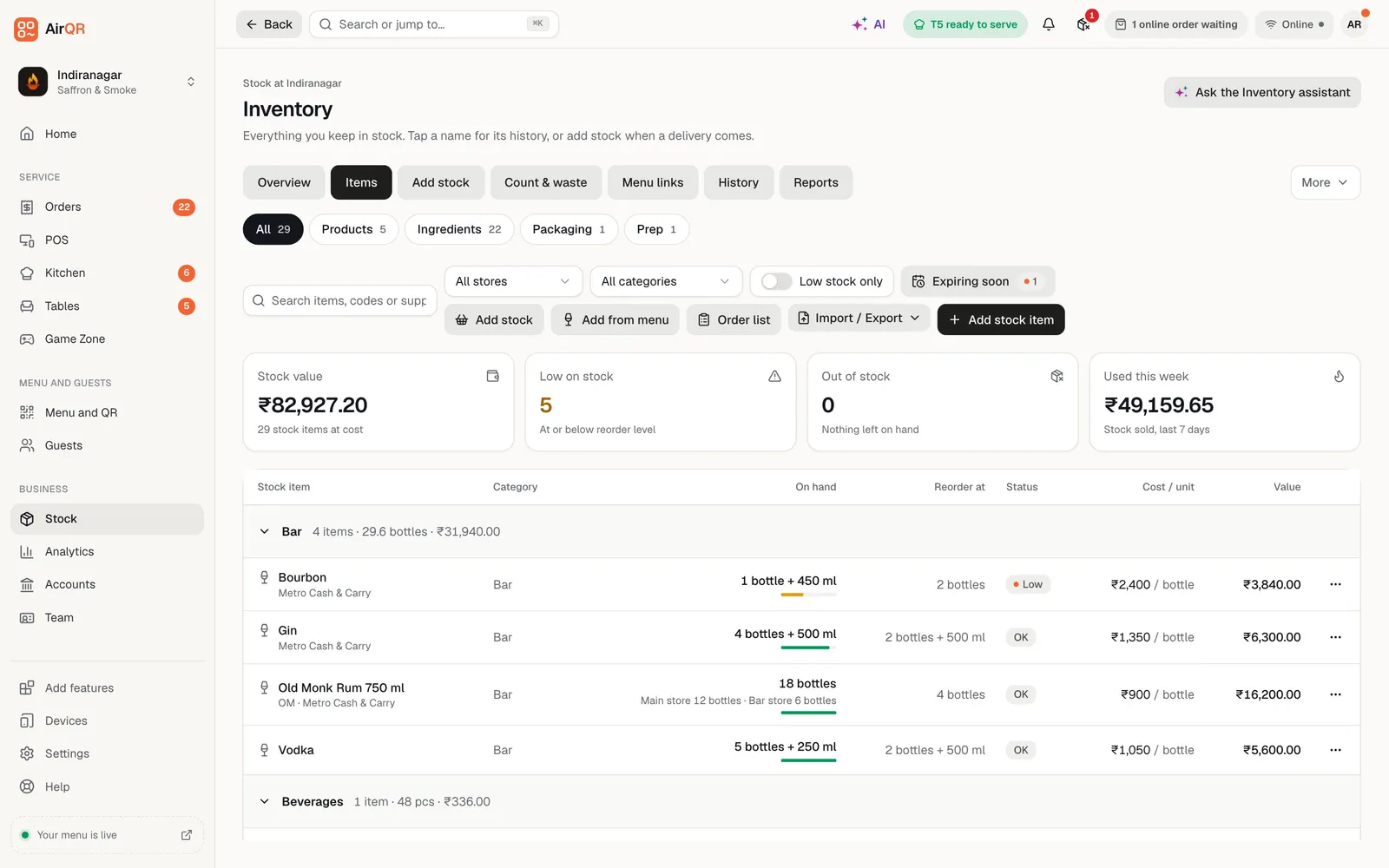
A guest who scans the counter QR code picks their order, gives a name and phone, and gets a token at once. With pay first on, the order waits until the cashier confirms the payment, and an order that is never paid is cancelled by the system after the time you set. The guest follows the order on their own phone until it is ready.
Staff mark the order ready and then Handed over on the Takeaway and delivery board. Orders that are ready and not yet collected stay on the Takeaway and delivery board until they are done. See the takeaway token system and takeaway tokens.
- Pay first at the counter
- Eat here or take away on every order
- The guest follows the token on their phone
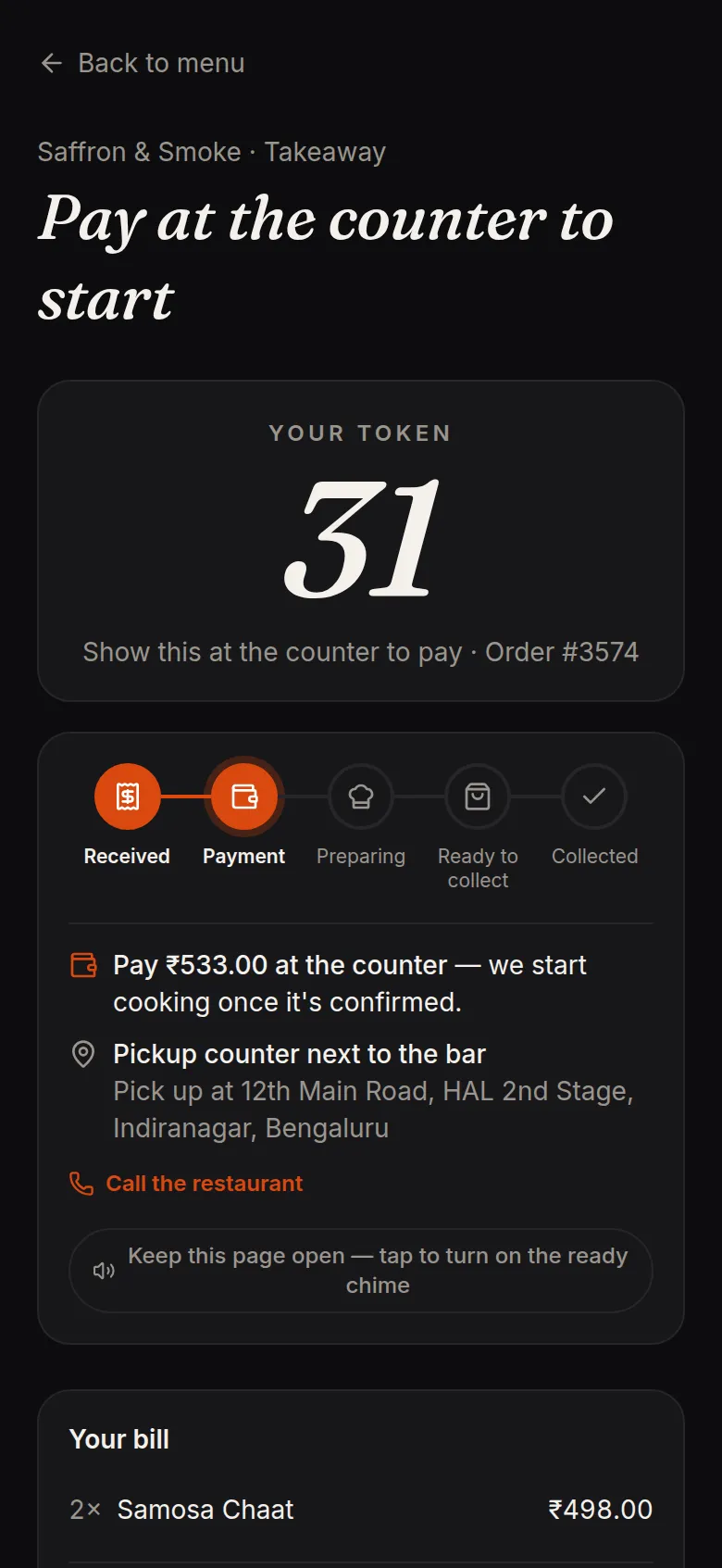
An order-ready screen for the queue
The order-ready screen is a web page. Open it on a TV or a spare tablet by the counter, tap once to switch on the chime and leave it. It shows token numbers and first names only, never amounts, phone numbers or items. It is available from the Starter plan. See the order-ready screen.
A parlour that wants guests to order without queuing at the till can add a self order kiosk, which is on Growth and above and an add-on on Starter. See self order kiosk.
- The newest ready order is highlighted
- Collected orders drop off after about ten minutes
- A light theme for bright shops
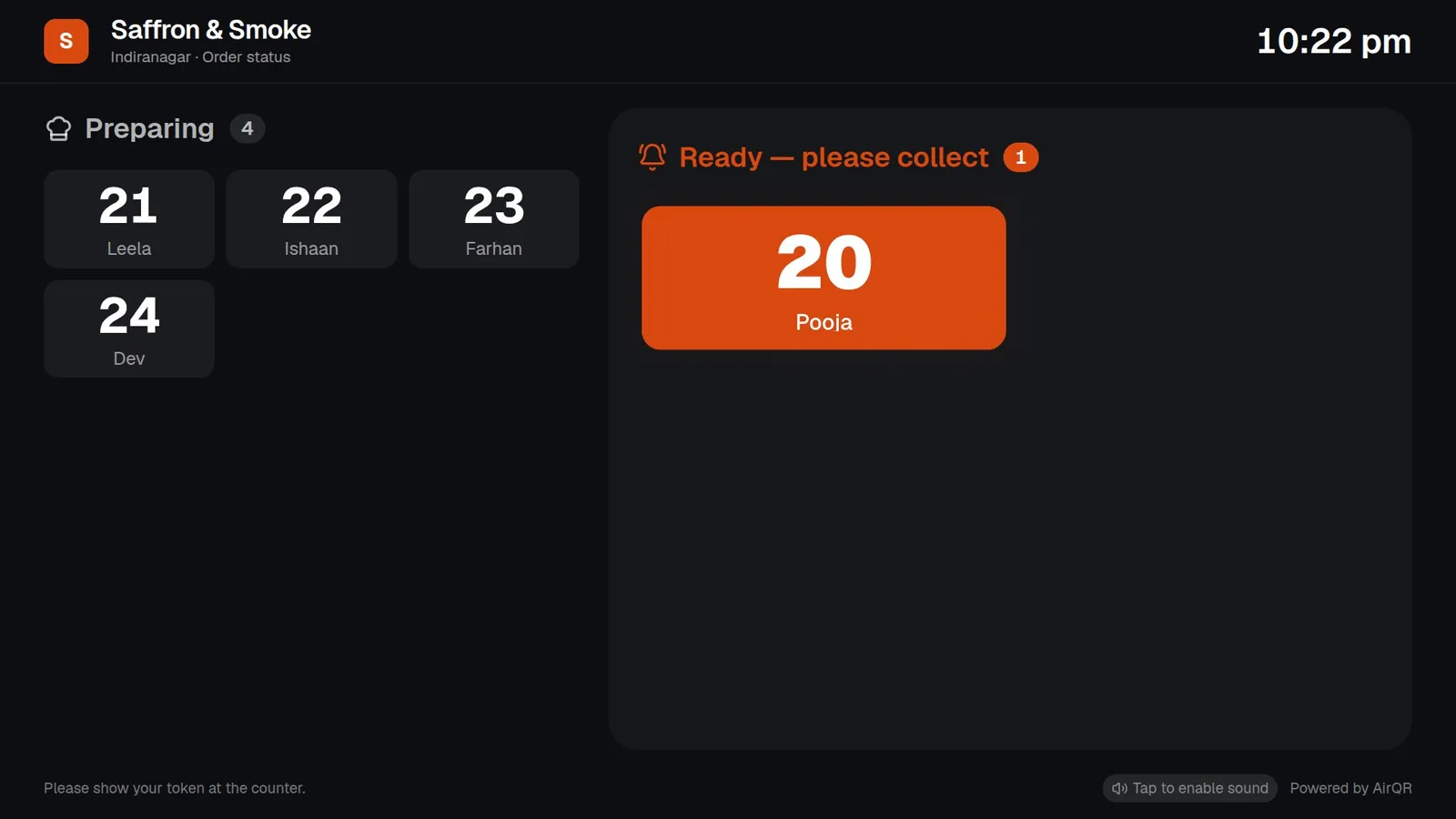
Stock, recipes and expiry for a dessert shop
On Growth and above, Inventory tracks ingredients such as milk, cream, sugar and cones, and a recipe takes them off stock as a dessert sells. Switch on Track expiry dates for items that go off, record the date when a delivery arrives, and AirQR uses the earliest expiring stock first and warns you before it expires. See inventory and batches and expiry dates.
If a tub spoils or a scoop is dropped, record it as wastage with a reason. Check pricing to see which plan includes Inventory.
Setting up your parlour
Most of this is done once.
- Add your flavours and desserts, with photos
- Give each item a short code
- Add sizes such as Cup, Cone and Family pack where they apply
- Build toppings groups with a minimum and a maximum
- Turn on counter takeaway and choose pay first
- Open the order-ready screen on a TV and turn the chime on
- Add your UPI ID so guests in India see a QR for the exact amount
Questions
What is the best POS for an ice cream shop?
Pick one your counter staff can use at the busiest hour. Check that it handles sizes, toppings, tokens and UPI in India, then try it on your own menu during the free trial.
Can I sell cups, cones and scoops at different prices?
Yes. Give an item named sizes with their own prices, such as Single, Double and Triple, or Cup and Cone. The menu shows the lowest price as from.
Can guests add toppings?
Yes. Build an add-on group, set the minimum and the maximum a guest can choose, and give each topping an extra price. The choices print on the order ticket.
Can I sell ice cream by weight?
No. AirQR does not read a scale and has no per kg or per gram pricing. Weigh the item yourself and bill a named size or a piece.
Can I take delivery orders?
Yes, on Growth and above or as an add-on on Starter, with your own riders and delivery areas. See pricing.
Can it track expiry dates?
Yes, on Growth and above. Switch on Track expiry dates for an item, enter the date when stock arrives, and AirQR uses the earliest date first and warns you before it expires.
Do I need tables?
No. Tables is optional, so a counter-only parlour can leave it off and staff never see a table picker.
Does it work when the internet drops?
The POS keeps taking orders and recording payments on the device and syncs later. Open it once on each counter device while online so it is ready.
Keep reading
Try AirQR in your restaurant
Set up in minutes on the phones, tablets and printers you already have. 28-day free trial.