For food court stalls and operators
Run each food court stall with its own QR menu and counter tokens
AirQR gives every food court stall its own QR menu, counter tokens, bills and order-ready screen. A stall can be its own outlet inside one business, or its own AirQR account run by the stall owner. A guest orders from one stall at a time, and each stall keeps its own orders, bills and tax ID.
- Every stall has its own QR menu
- Counter tokens and an order-ready TV
- Each stall keeps its own bills and tax ID
How a food court works in AirQR
A food court is many small kitchens under one roof. Each stall has its own menu, its own cook and its own cash. AirQR follows that shape. A stall is an outlet, and an outlet has its own menu, its own table and counter QR codes, its own orders, its own bills and its own tax ID. The GSTIN on a stall's bill is the stall's, not the operator's.
There are two ways to set it up. An operator who runs many stalls can keep them as outlets in one business, with one login, and switch between stalls from the top of the sidebar. The number of outlets follows your plan, so check pricing and the multi-outlet page. Or each stall owner can have a separate AirQR account, which keeps every stall's sales, staff and settings private from the others.
One thing to know before you start. AirQR does not have a shared cart for the whole court. A guest cannot put a biryani from one stall and a juice from another in a single order and pay once. Every order belongs to one stall, with that stall's menu, token and bill. Guests who want food from two stalls place two orders, which is how most food courts already work.
A lunch rush at one stall
This is how a busy hour looks at a single stall when it runs on AirQR.
- 01
Opening
The stall owner marks anything that has run out as sold out. It greys out at the till and on the stall's QR menu, so nobody orders what is not there. The order-ready screen is opened on a TV or a spare tablet near the counter.
- 02
12.30 pm, guests arrive
Guests scan the QR code on the stall's counter board and see only that stall's menu. They pick their dishes, give a name and phone and pay first at the counter. Others walk up and the cashier bills them on the point of sale.
- 03
A token for every order
Each order gets a token for the day. It prints on the bill, shows on the kitchen ticket and appears on the stall's screen, so the stall calls numbers and not names.
- 04
Cooking
The ticket prints on the stall's kitchen printer, or shows on its kitchen display on Growth and above (an add-on on Starter). The cook marks it ready and the token moves from Preparing to Ready on the order-ready screen.
- 05
Handing over
Staff mark the order ready and then Handed over on the Takeaway and delivery board. A guest who ordered for takeaway collects it at the counter with the token number.
- 06
Closing
The cashier closes the drawer and prints the Z report for that stall. The stall owner sees the day's sales in analytics, and an operator with several outlets can look at all of them together.
A QR menu and a token at every stall counter
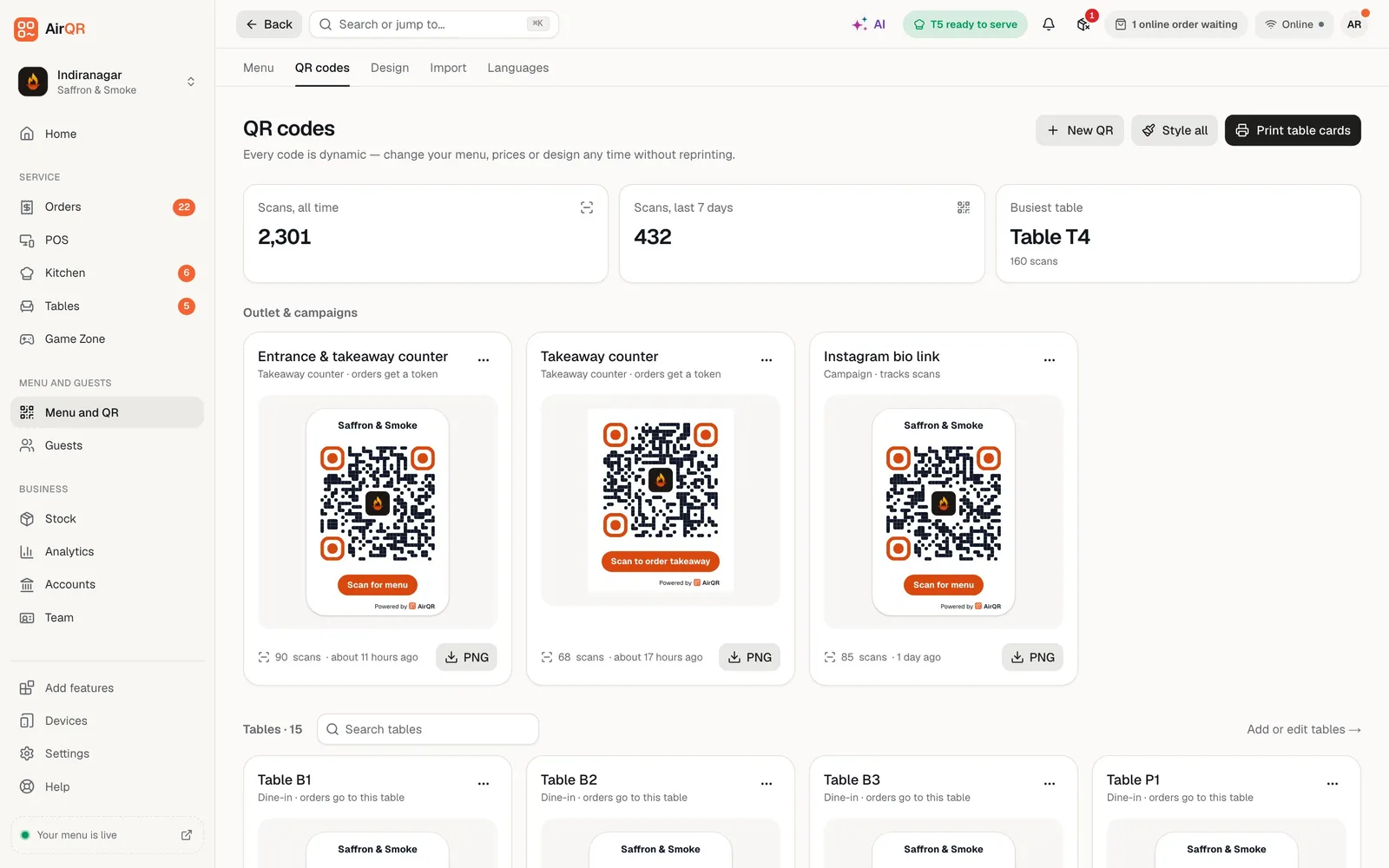
Each stall prints its own counter QR code and sticks it on the counter board or the shutter. Guests scan it, order from that stall's menu and get a token. The QR code never changes when you change your menu or prices, so the printed board stays good. See the QR code menu and QR codes.
The page also counts scans for each code, so a stall owner can see which board or poster brings guests. A stall with no seating needs only the counter code, and a stall with a few stools can add table codes as well.
- One counter QR per stall
- Orders from the counter QR get a token
- Scan counts for every code
An order-ready screen for every stall
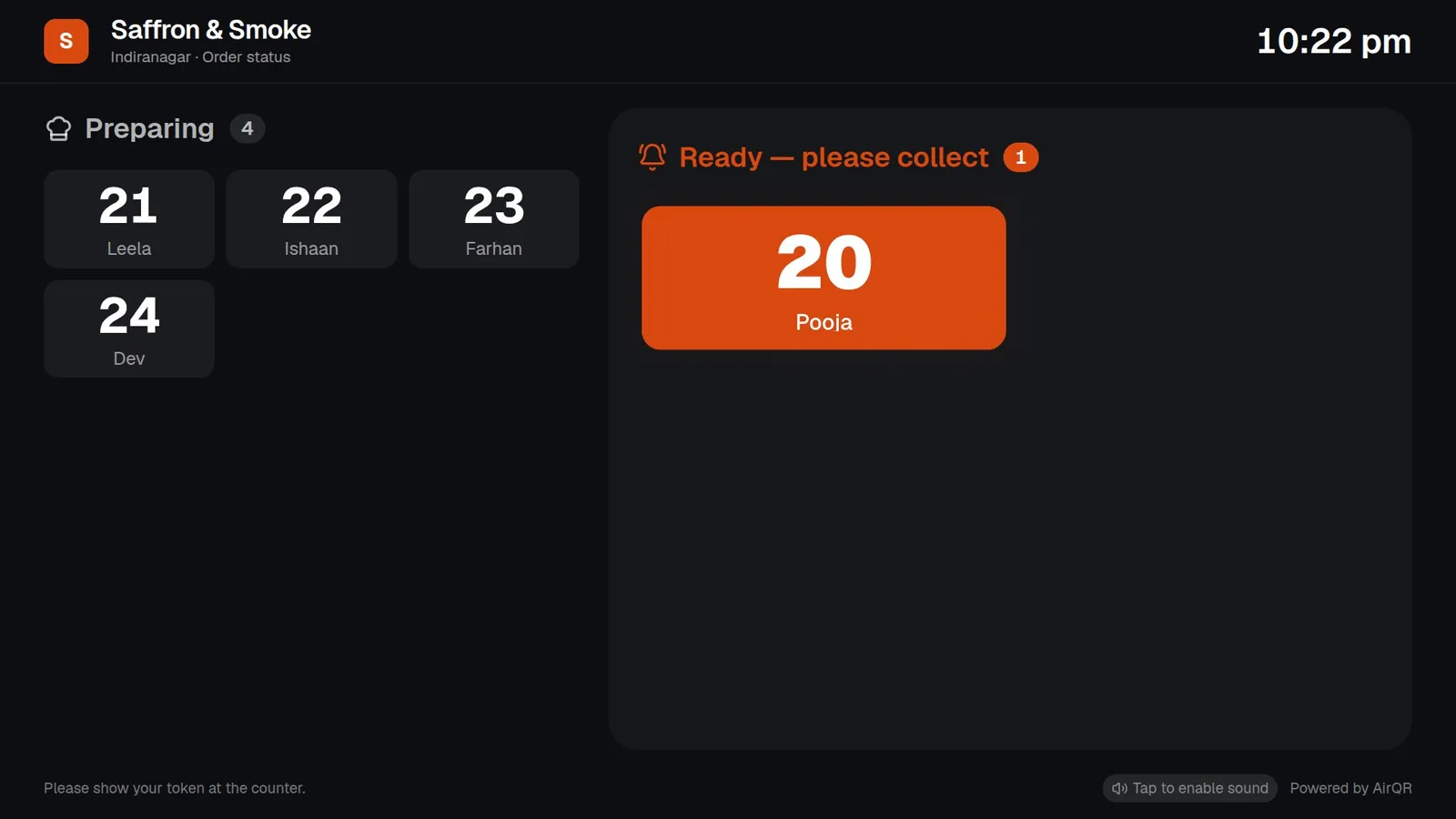
The order-ready screen is a web page you open on a TV, a TV stick or a spare tablet. It shows token numbers and first names only, never amounts, phone numbers or items, so it is safe in a busy hall. Tokens move from Preparing to Ready with a chime when the cook taps ready. It is available from the Starter plan.
Give each stall its own screen so its guests watch only their own tokens. The number of screens follows your plan, and a business with several outlets shares its allowance across all of them. See the takeaway token system and the order-ready screen.
- Token numbers and first names only
- The newest ready order is highlighted
- A light theme for bright halls
What each stall can use
Every one of these is per stall, set up in the stall's own settings.
Pay first at the counter
Guests pay before the order is cooked. An order waits as Waiting for payment until the cashier confirms it, and an unpaid order is cancelled after the time you set. See takeaway tokens.
Takeaway
Counter orders can be eat here or take away, with a packaging charge you set for the stall.
A self order kiosk
A tablet where guests order and get a token by themselves. The kiosk is on Growth and above, and an add-on on Starter. See self order kiosk.
A kitchen display
On Growth and above, or as an add-on on Starter, tickets reach the stall's cooks on a screen, with timers that turn amber and then red. See kitchen display.
Printing
KOTs and bills print for the stall on its own printers. See KOT printing.
Short codes at the till
Give each dish a code and type it with a quantity for fast billing. See short codes.
Setting up a food court
Do these once for each stall.
- Decide whether stalls are outlets in one business or separate accounts
- Add each stall's menu, with photos and short codes
- Enter each stall's tax ID, such as its GSTIN in India
- Print the counter QR for each stall board
- Turn on counter takeaway and choose pay first
- Open the order-ready screen on a TV for the stall
- Add the stall's UPI ID so guests in India pay the exact amount
Money and tax stay with each stall
AirQR is not a payment gateway. Guests pay the stall directly, with cash or card at the counter, or by UPI into the stall's own UPI ID in India. Staff confirm the payment. This means there is no commission on the order and no money passing through AirQR to be split between stalls afterwards.
Because every stall is its own outlet, its bills carry its own name, address and tax ID, and its tax reports are made for that outlet. An operator who needs to settle rent or revenue share with stalls can use each stall's day-end and sales reports. All outlets of one business must be in the same region.
Questions
Can guests order from several stalls in one order?
No. Each stall has its own QR menu, its own token and its own bill, and every order belongs to one stall. A guest who wants food from two stalls places two orders. Each stall can be its own outlet in one business or its own AirQR account.
Should each stall be an outlet or a separate account?
Use outlets when one operator runs the stalls and wants one login. Use separate accounts when each stall belongs to a different owner who should see only their own sales and staff. The outlet limits of your plan apply to the first option.
How many stalls can one business hold?
That follows the outlet limit of your plan. Every plan includes 1 outlet and you can add more on request, for a monthly price per outlet, up to 3 outlets on Starter and 5 on Growth and Pro. Custom plans cover larger groups. See pricing.
Does each stall get its own token and screen?
Yes. Tokens count up from 1 each day at each stall, and each stall can open its own order-ready screen. The number of screens follows your plan.
Can a stall use a kiosk?
Yes, on Growth and above, or as an add-on on Starter. The kiosk is a tablet where guests order and receive a token, and it belongs to one stall.
Does it work without tables?
Yes. Tables is an optional module, so a stall that serves only at the counter can leave it off and never sees a table picker.
Who gets the money from a guest's order?
The stall does, directly. AirQR does not hold or split money between stalls. In India a guest can pay into the stall's own UPI ID, and the cashier confirms it.
Keep reading
Try AirQR in your restaurant
Set up in minutes on the phones, tablets and printers you already have. 28-day free trial.