AI inventory
AI that reads supplier bills into your restaurant stock
Typing a supplier's bill into your stock list is slow, and it is the job most kitchens skip. With AirQR you photograph the bill, AI reads the supplier, invoice number, date and items, and fills the Add stock form with each line matched to your stock items. You check it, fix anything and save. Nothing is stored until you press Save stock-in.
- Photo or PDF of the bill
- Lines matched to your stock
- You check before it saves
Why stock entry gets skipped
A delivery arrives at the back door during prep. The bill has twenty lines, some in cases and some in kilos, with GST on top. Someone has to type it all in before the stock list is true. When the shift is busy that job waits, and then the food cost numbers drift away from what is really on the shelf.
AI bill reading takes the typing out of that job. It is part of the inventory module, inside the Add stock screen where you already receive deliveries. It does not replace your judgement. It gives you a filled-in draft in a minute, and you spend your time checking instead of typing.
Because stock-in also feeds recipe costing, supplier price history and purchase exports, a correct bill matters. That is why every line shows how sure the match is, and why a person always presses the final button.
From a photo of the bill to a saved stock-in
- 01
Open Add stock
Go to Inventory, then Add stock, then Supplier delivery. When AI is switched on for your account you see the Read the bill with AI button.
- 02
Take a photo or choose a file
Use the camera, choose photos, or pick one PDF. You can send up to 5 pages in one go. The screen tells you how many AI credits it will use per page before you start.
- 03
Let AI read it
Tap Read the bill. You can cancel while it works. If the AI fails or you cancel, the credits are given back.
- 04
Check the review
You see the supplier, invoice number, date and every line with the stock item it was matched to. Lines that need a look are marked.
- 05
Use it and save
Tap Use in Add stock. The form is filled in and the bill photo is attached to the stock-in for you. Change anything, then press Save stock-in as usual.
What the AI reads and how it matches
The goal is a draft you can trust at a glance.
The supplier
AirQR matches the supplier by GSTIN first and then by name, so the same supplier does not appear twice under slightly different spellings.
Invoice number and date
Both are read from the bill. AirQR also warns you about a duplicate invoice number and stops you saving the same bill twice.
Every line, matched to your stock
Each line is matched by barcode or short code on the bill, by an exact name or by a close name, and the price the supplier usually charges helps decide how sure the match is.
Clear confidence badges
A line is marked Sure, Likely, Check or No match, so you spend your attention on the lines that need it.
Units that convert
A line shows what was billed and what it becomes, for example 24 bottles billed becomes 2 cases in your stock. Pick a different item and the conversion is worked out again.
A warning when it does not add up
If the lines do not add up to the bill's total, a warning tells you something may have been misread.
Stock that feeds food cost and purchases
A saved stock-in adds the quantity to the shelf, keeps the price for costing and builds that supplier's price history. The bill you photographed stays attached to the stock-in for your records, and owners and managers who can see costs can open it from History.
From there the rest of the module takes over. Recipes and food cost use the latest prices, low stock reaches your order list, and your accountant can take a purchase export for Tally. If you forgot to attach a bill earlier, you can add it to the stock-in later. Voiding a stock-in takes its stock and price effect back, and clerks can add stock without ever seeing costs.
Create a missing item without leaving the screen
A new supplier often sells an item you have never stocked. A line marked No match is highlighted so you cannot miss it. Pick the right stock item from your list, or, if you are an owner or manager, tap Create item and add it on the spot. You can also leave the line out with Skip this line.
If the same item appears on several lines with different prices or tax, for example a free goods line at zero rupees, they stay as separate lines in the stock-in, just as they are on the bill. People who cannot see costs do not see prices or totals on this screen at all.
Photos, PDFs and what to expect
A PDF is counted by its real pages, up to 5, and charged by page. A very heavy PDF costs a little more to read, so it is charged a little more. Some phone photos in the HEIC format cannot be opened by the browser. The screen tells you so, and you can take the photo with the camera or upload a JPG or a PDF instead.
Lay the bill flat, in good light, and capture every page. A blurry or folded bill reads badly, and AI can still misread a number, which is why the review step exists. You stay in charge of what goes into your stock.
Beyond bills, an AI Analyst for your stock
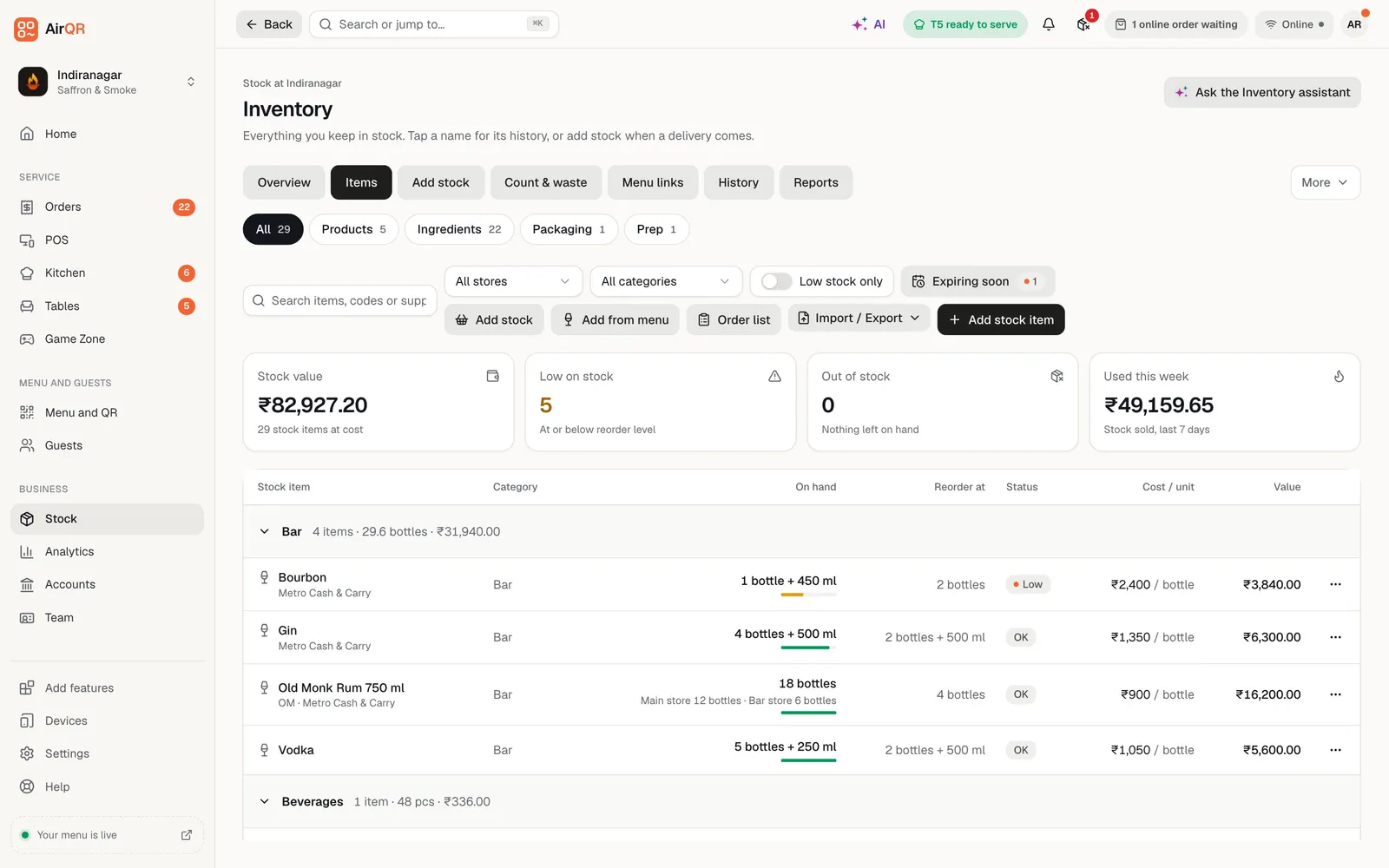
Reading bills keeps your stock true. The AI Analyst then helps you act on it. With the Inventory assistant you can ask what is low, what will run out soonest, what to reorder, what is about to expire, which supplier prices rose and what each dish costs to make, and the figures are checked against your own stock data before you see it, with any that cannot be checked marked.
When you ask for a purchase order, it shows a draft card by supplier with the items and quantities. Nothing is created until you press Create draft PO, and then it is a normal draft you can edit or share. The Overview tab also carries an Inventory brief once a day. A question uses about 0.07 to 0.5 credits, and the brief about 0.09 to 0.35. The AI Analyst is included in Pro, Custom, a licence and the free trial, and is a ₹299 a month add-on on Starter and Growth, separate from bill reading.
AI credits for bill reading
Bill reading uses AI credits, like the other AI tools. Your plan includes credits every month and you can add more with a credit pack. See the pricing page for what each plan includes.
- The credits per page are shown before you start, as an about X to Y credits range, and a page uses between 0.05 and 1 credit depending on how heavy it is
- Credits are returned if the AI fails or you cancel
- Anyone who can count stock can use it, and the credits belong to the business
- Usage appears in the AI credits page by day, feature and outlet
- Inventory is part of the Growth and Pro plans, and a module add-on on Starter
Questions
Can AI read my supplier's bill into AirQR?
Yes. On the Add stock screen, choose Read the bill with AI, take a photo or pick a PDF, and AirQR fills in the supplier, invoice number, date and items. You review the draft and press Save stock-in.
Does AI save the stock without me checking?
No. Nothing is saved until you check the lines and press Save stock-in. Every line shows how sure the match is, and lines with no match are highlighted.
What if the AI reads a number wrongly?
You can change any quantity, price or item before saving. If the lines do not add up to the bill's total, AirQR shows a warning so you can look again.
How many pages can I read at once?
Up to 5 pages, as photos or as one PDF. The screen shows the AI credits it will use per page before you start.
Do I lose credits if I cancel or the AI fails?
No. You can cancel while it reads, and credits are returned if the AI fails or you stop it.
Can AI tell me what stock will run out?
Yes. Ask the Inventory assistant in the AI Analyst which items will run out soonest. It shows the days of cover left, suggests what to reorder and can prepare a draft purchase order that is created only when you tap.
Can a kitchen clerk use it without seeing prices?
Yes. Clerks can read and add stock, and they never see costs. The review screen hides prices and totals from anyone who cannot see costs.
Does it work with GST bills?
Yes. AirQR matches the supplier by GSTIN and keeps the bill with the stock-in. You can then take a purchase export for Tally.
Keep reading
Try AirQR in your restaurant
Set up in minutes on the phones, tablets and printers you already have. 28-day free trial.