AirQR Routes van stock
Know what is on every van, from the warehouse door to the evening count
A van is a small warehouse that moves. AirQR Routes loads it each morning from the regular orders of the shops on the route, moves the stock out of the warehouse on the books, lets the driver confirm what they received, and shows what was sold and brought back. In the evening you count at the warehouse, and the van ends at zero.
- Suggested load from regular orders
- Driver confirms what was received
- Counted back in, van ends at zero
The stock that disappears between the warehouse and the shop
When stock leaves the warehouse on a van, the books usually stop. Someone said how many crates went out, someone wrote it on a slip, and the next time anyone looks is the evening, when the numbers are short and nobody can say where. Was it loaded wrong? Sold without a bill? Left at a shop? Damaged on the road?
AirQR Routes keeps a count of each van. Every unit that goes out, every unit billed, every unit taken back and every unit counted at the warehouse at night is on the same book. A difference does not stay a mystery, because you can see which step it appeared at.
From Main stock to the van
- 01
Plan the load
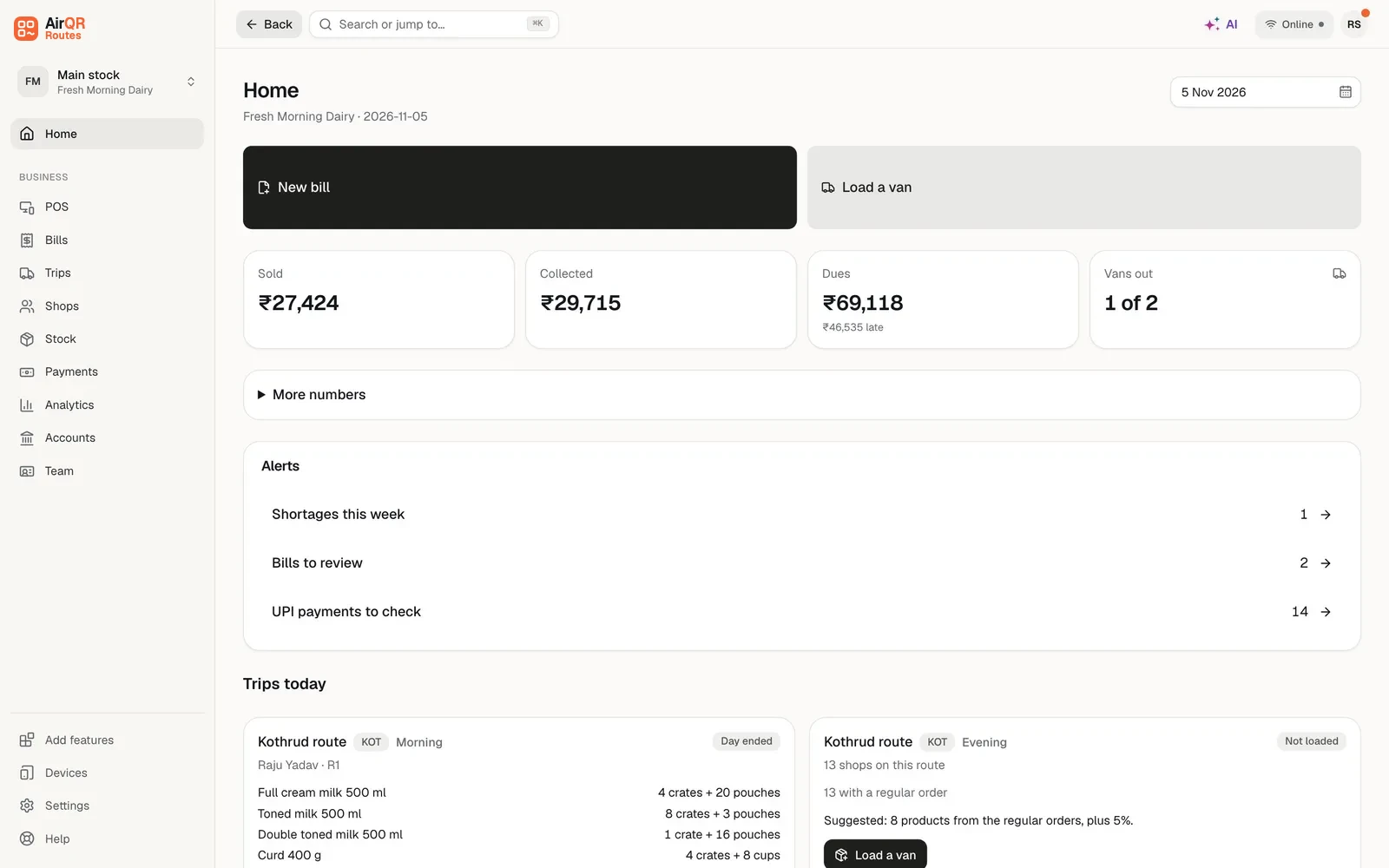
Open Home and press Load a van, or press Load on a route under Not loaded yet. Step 1 shows every driver as Free, Loaded, On the road or To settle, so you pick one who is free. The quantities are filled in from the regular orders of the shops on that trip, plus a buffer of 5% unless you changed it, rounded up using the first configured pack size when a product has packs. Products support several named capacities.
- 02
Adjust and pick the driver
Open a product quantity to enter counts for any configured pack sizes and loose units together. For example, combine two crates of 12 with one carton of 6 and loose pouches. Each product shows its photo and what the warehouse holds, and On this load keeps a running total, such as 7 products · 31 crates · 12 loose, beside the list. Pick the driver, give an open trip its own name and optionally record Planned departure. Review the suggested empty-container counts before you confirm.
- 03
Confirm the load
Press Confirm load. The stock moves from the warehouse to that driver's van in one step, with the empties. The van is created the first time you load a driver and is named after them. The driver gets a Load ready notification that opens the app.
- 04
The driver checks it
On the phone the driver sees each product and what was loaded. They count what is on the van and change a number if it differs, with a reason if they wish. When the driver presses Start trip, the actual start is recorded. The trip moves to On the road on Home, and the trip page lists every product that was received differently.
What you can do with the load
A warning, not a stop
If Main stock holds less than the proposed load, a warning shows the available and requested quantities. The load still goes ahead, and Main stock shows below zero until you add stock. A busy morning is not blocked.
Edit or cancel before it is accepted
Edit load changes the quantities and the empties, and the difference moves between the van and the warehouse. Cancel load, on the trip page, puts everything back and frees the slot. After the driver accepts, a load can no longer be edited or cancelled.
Top up during the day
Top up sends more stock to the van later in the day. It is recorded on the same trip, so the day's numbers stay in one place.
Differences you can see
If the driver received something different, the trip is marked Accepted with differences on Home, Needs you says so, the trip page shows lines such as Toned milk, received 22 of 24, with their note, and managers get a notification.
Stock in packs and units
A product shows its pack, its price and Main stock in units and packs, for example 410 units shown as 17 crates and 2 loose. A Low stock badge shows when it falls to the level you set.
Add stock and adjust
When goods reach the warehouse, add stock in units, packs or both, with a supplier and a cost if you wish. If the shelf is different from the book, adjust it to what you count and say why.
Where each number on the evening sheet comes from
At settlement, for every product you see these figures side by side.
- Loaded
- Where it comes fromThe load you confirmed, plus any top-ups during the day.
- Sold
- Where it comes fromThe quantities on the driver's bills for the trip.
- Good goods taken back
- Where it comes fromGoods the driver took back from shops on bills, marked good.
- Damaged returns
- Where it comes fromGoods the driver took back marked damaged. They were already sold, so they do not change the stock.
- Should be left
- Where it comes fromWhat the van should hold, which is the load and top-ups, less what was sold, plus the good goods taken back. The driver's own count from End day, counted before they see this figure, is shown beside it.
- Counted at the warehouse
- Where it comes fromWhat you count when you settle, split into good and damaged. It starts from the driver's count.
The variance is shown in units and in money.
When the count does not match
If stock is short, you decide. You can charge it to the driver, valued at the selling price, mark it as a loss with a reason, or choose Decide later and let the owner decide. Every difference keeps a reason, such as Damaged on the van or Counting mistake, and its value at cost and at price. If there is extra stock, you add it back to Main stock. Damaged goods that were loaded and spoilt on the van are written off as damaged.
When you approve the settlement, AirQR moves the counted good stock from the van back to Main stock, writes off the damaged and short stock with the reasons kept, and the van ends at zero. The trip then locks. A correction after that is a new entry, not an edit. Read more in end of day settlement.
One trip on the books at a time
A van carries one trip's stock on the books at a time. AirQR refuses to settle while another load on the same van is waiting or on the road, and it refuses a new load while an earlier trip on that van has ended but is not settled yet. It tells you which trip to settle first, so two days of stock never mix.
If a bill reaches the server after its trip was settled, which can happen when a phone was offline, its stock is taken from the warehouse and the bill is marked Synced after settlement. Empties travel with the van in the same way. See tracking crates and jars.
Reports for stock movement
The Trip sheets report has one row for each trip, with what was loaded, what was sold and what was found short. On Routes Plus, Product movement shows each product on each route and driver, with loaded, sold, taken back good, taken back damaged, and the damaged share of what was sold. Returns by product, on every plan, shows what was taken back for each product, its condition and its reason. Every report downloads as Excel or CSV. See Routes reports.
Questions
How does AirQR decide how much to load on a van?
It adds up the regular orders of the shops on that route and trip, adds a buffer of 5% unless you changed it, and rounds up to whole packs where a product comes in packs. You can change every number before you confirm.
Can I load more than the warehouse holds?
Yes. You see a warning with what the warehouse has, but the load still goes ahead and Main stock shows below zero until you add stock.
What happens if the driver received less than I loaded?
The driver changes the number when accepting, with an optional note. Home marks the trip Accepted with differences, and the trip page lists each product that was received differently with the driver's note. Managers get a notification.
Can I send more stock to the van during the day?
Yes, with Top up. It is recorded on the same trip. A load that was accepted can no longer be edited or cancelled, but it can be topped up.
Where does unsold stock go at the end of the day?
You count it at the warehouse when you settle. Counted good stock moves from the van back to Main stock, and damaged or short stock is written off or charged to the driver, as you decide. The van ends at zero.
Can two trips share one van on the same day?
Yes, one after the other. AirQR refuses a new load on a van while an earlier trip on it has ended but is not settled, and tells you which trip to settle first.
Keep reading
Try AirQR Routes in your distribution business
28-day free trial. It runs on your drivers' own phones, even with no signal.