AirQR Routes driver app
A billing app your delivery drivers can use on their own phone
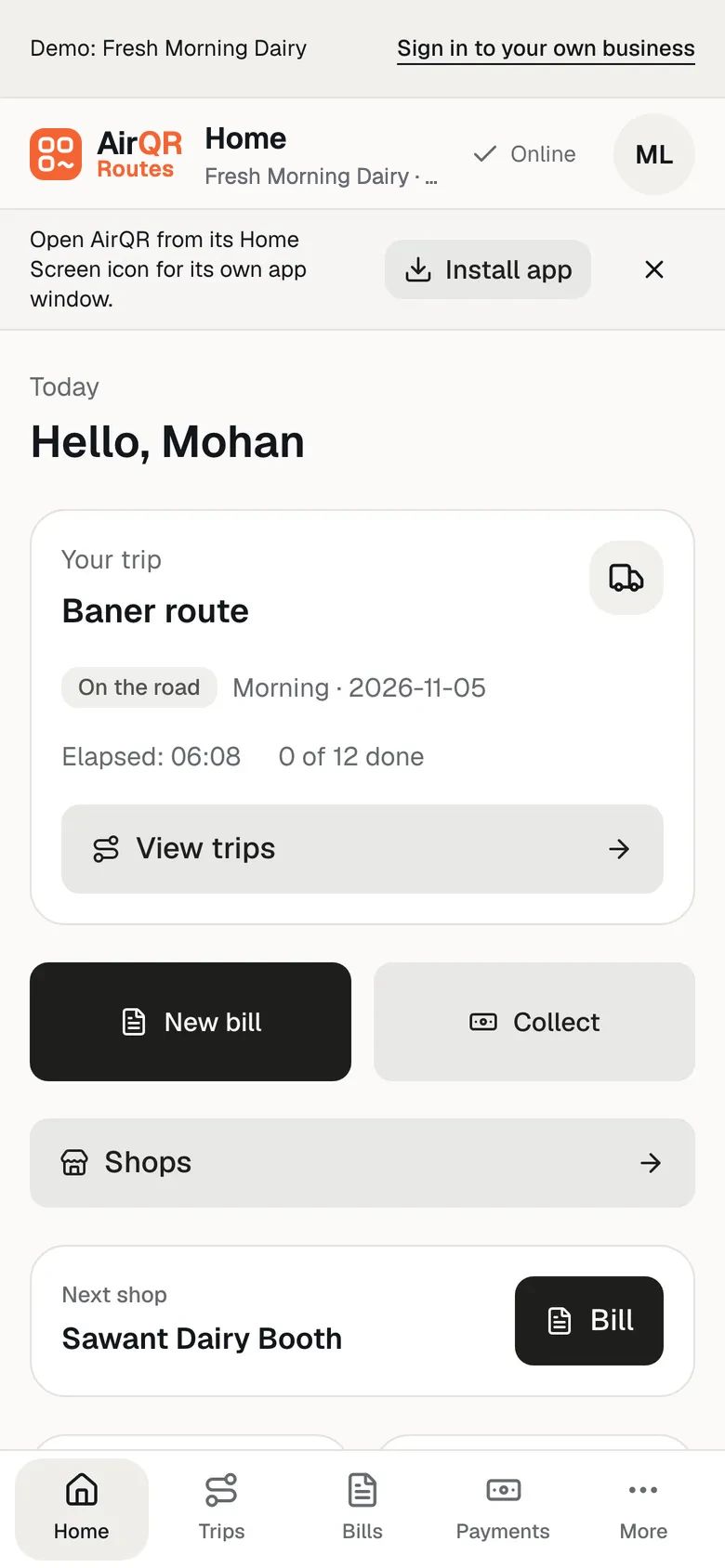
The AirQR Routes driver app lets a delivery driver accept the van's load, bill every shop on the route, take cash or UPI, collect old dues and end the day, all from a phone browser. It works with no signal, runs in Hindi and English, and needs no app store. A repeat shop is billed from its regular order, with a direct Save for an unchanged cash bill.
- No app store, opens from the home screen
- Regular order filled in for repeat shops
- Bills, cash and visits saved offline
Why the driver needs more than a bill book
A driver on a route does many small jobs in a day. They check the load, find the next shop, write a bill, take cash or a UPI payment, remember who owes, count crates and bring it all back at night. On paper, each of these is a place to make a mistake, and none can be checked by the owner until the driver is back.
The AirQR Routes driver app turns each job into one screen on the driver's own phone. In Trips, the owner can check elapsed time, see which shops had a bill, collection or no-sale visit, and read the latest recorded action. An offline phone sends its work when it reconnects. A driver who chooses to share location can also leave a recorded point with an action.
A driver's day in the app
- 01
Open it and accept the load
The driver opens the address on their phone, or the AirQR Routes icon on the home screen. Today shows the current run, and a load waiting for the driver opens there in units and packs, with the empties. The driver counts what is on the van, changes any number that differs, and presses Start trip. The owner sees any difference. Start trip records when the driver actually starts, independently of an optional Planned departure.
- 02
Bill a shop
Press New bill on Today or open Shops and bill a specific customer. Search for the shop and pick it. Its regular order is already filled in, so the driver only changes what is different today, with the minus and plus buttons or by typing the number.
- 03
Take the payment
Choose Cash, UPI, Credit or Split. UPI shows a QR for the amount on the driver's phone, and the driver checks the money arrived in their UPI app before saving. Credit asks in how many days the shop will pay and is only offered to a shop that may have it.
- 04
Collect an old due
Press Collect on a shop. It is filled in with what the shop owes. The driver changes the amount if the shop pays part, picks cash or UPI, and the money clears the oldest dues first.
- 05
Note a visit with no sale
Press No sale and choose shop closed, no order today or other, with a note if wanted. The owner sees it, so a skipped shop is not a mystery.
- 06
End the day
Cash in hand starts with the amount to hand in. The driver enters their own count or counts by notes, checks the van stock and empties, then confirms End day. The trip waits for the owner to close the day at the warehouse.
What is in the app
Regular order, ready to go
Each shop on the route shows its regular order, what it owes, what is overdue and the empties it holds. An unchanged regular cash order can go from Bill to Save. Open View bill to change payment, crates or returns.
Empties and returns on the bill
Record how many empties were left and how many were taken back. For products sold on sale or return, record goods taken back as good or damaged. The owner then issues any credit note.
Credit with a limit
The app works out what a shop owed when the day began, less money collected since, plus credit given since. Two bills in a row cannot take a shop over its limit, and a blocked shop cannot be billed on credit.
Map and Call
Each shop has a Map button that opens Google Maps at its pin, and a Call button. A new shop can be added on the road with a name and a mobile number.
Bills on WhatsApp
A Send on WhatsApp button writes the bill as a message to the shop's number. Once the bill has reached the server, the message also carries a link to the bill.
Its own bill numbers
Every driver bills in their own series, such as GD1/26-27/7 (outlet code, the driver's till number and the financial year), and a number is never used twice. A bill is never renumbered after it is printed. Whether the document is a bill, a bill of supply or a tax invoice follows the tax setup of the products.
The driver’s work screens
The driver can switch between daily work and their own synced records at the signed-in outlet.
- Today
- What it is forCurrent trip, next shop, billing, collecting and ending the day. Start a load online when permitted, then check it and press Start trip. Names are not limited to Morning and Evening.
- Shops
- What it is forYour customers with search. Bill, collect, take back or note a visit with no sale.
- Bills
- What it is forFind your own synced van bills by business date when you have history access.
- Payments
- What it is forSee bill tenders and shop collections for your own work when you have payment history access. On a phone it is under More.
- Past trips
- What it is forYour earlier trips at this outlet. On a phone it is under More.
- More
- What it is forMy profile, this phone, sync, Help, installation and app updates.
Their own phone, no app store
The driver app is a web app. The driver opens the address on their own phone, signs in, and adds it to the home screen. It looks and opens like an app, and there is no Android or iPhone store listing to find, install or update. You do not buy a device for each driver.
A driver's bills belong to one phone, and the first phone they sign in on becomes theirs. A second phone or a tablet signed in as the same driver can look at the day, with a banner saying View only, but cannot bill, collect or start the trip. If a driver gets a new phone, you move them in Team → Drivers. The old phone stops working in the driver app, what it had recorded still arrives, and the new phone carries on after the highest bill number the old one used. Numbers the old phone took but never sent are recorded as cancelled bills, so none stays unexplained.
The app is in Hindi and English. In Routes settings you can also change the words for route, driver, customer and empties, so the screens use the words your people use.
When there is no network
The app works with no network. The driver connects once so it can prepare the day. After that, opening the app, accepting the load, billing, collecting, noting visits and ending the day are all saved on the phone and sent in the order they were made when the connection returns. The top of the screen shows Offline and how many changes are waiting, and Send now sends them. A list on Today shows what has been done on this phone, with a note on what has not been sent yet.
So a lane with no signal never stops a sale. For more, see the offline page.
Location, only if the driver allows it
The first time a driver accepts a load, the app explains what location is for and asks them to allow it or choose Not now. They can say no and still do everything. If they allow it, the place is saved when the app is opened and when they accept the load, bill, take a payment, note a visit or end the day, only on a day with a load.
The owner sees how far from the shop each bill was made, or that there is no shop pin or no location, with a link to open the place in Google Maps. AirQR draws no map of your drivers and keeps no trail of their journey. See bill locations. Tell your drivers before you turn this on.
Questions
Do drivers need to download an app from Play Store or App Store?
No. The driver app is a web app. The driver opens the address on their phone and adds it to the home screen. There is no store app to install.
Does the driver app work without internet?
Yes. After connecting once to prepare the day, bills, collections, visits and End day are saved on the phone and sent when the network returns. Open Sync status from the header, account menu or More to see how many changes are waiting.
Can the driver app be used in Hindi?
Yes. It runs in Hindi and English, and in Settings you can change the words for route, driver, customer and empties in both languages.
How does a driver take a UPI payment?
The app shows a QR for the bill amount on the driver's phone. The driver checks in their UPI app that the money arrived before saving the bill. The owner can tick the UPI payments as seen in the bank when settling.
Can a driver give credit to any shop?
No. Credit is offered only to a shop that is allowed it, up to its limit, and a blocked shop cannot be billed on credit. A new shop added by a driver gets credit only if the owner allowed that in Settings.
What if a driver changes their phone?
The owner presses Move to new phone next to the driver in Team → Drivers. The old phone stops working in the app, what it had recorded still arrives, and the new phone carries on after the highest bill number used.
Does the driver have to allow location?
No. The app asks once and the driver can say no and still bill, collect and end the day. If allowed, the place is saved at a few moments on a day with a load, and nothing is followed in between.
Keep reading
Try AirQR Routes in your distribution business
28-day free trial. It runs on your drivers' own phones, even with no signal.